

%20--%3E%3Cmetadata%20xmlns%3Ardf%3D%22http%3A%2F%2Fwww.w3.org%2F1999%2F02%2F22-rdf-syntax-ns%23%22%20xmlns%3Axsi%3D%22http%3A%2F%2Fwww.w3.org%2F2001%2FXMLSchema-instance%22%20xmlns%3Adc%3D%22http%3A%2F%2Fpurl.org%2Fdc%2Felements%2F1.1%2F%22%20xmlns%3Adcterms%3D%22http%3A%2F%2Fpurl.org%2Fdc%2Fterms%2F%22%3E%3Crdf%3ARDF%3E%3Crdf%3ADescription%3E%3Cdc%3Atitle%3EWaves%3C%2Fdc%3Atitle%3E%3Cdc%3Acreator%3EDiceBear%3C%2Fdc%3Acreator%3E%3Cdc%3Asource%20xsi%3Atype%3D%22dcterms%3AURI%22%3Ehttps%3A%2F%2Fwww.dicebear.com%3C%2Fdc%3Asource%3E%3Cdcterms%3Alicense%20xsi%3Atype%3D%22dcterms%3AURI%22%3Ehttps%3A%2F%2Fcreativecommons.org%2Fpublicdomain%2Fzero%2F1.0%2F%3C%2Fdcterms%3Alicense%3E%3Cdc%3Arights%3E%E2%80%9CWaves%E2%80%9D%20(https%3A%2F%2Fwww.dicebear.com)%20by%20%E2%80%9CDiceBear%E2%80%9D%2C%20licensed%20under%20%E2%80%9CCC0%201.0%E2%80%9D%20(https%3A%2F%2Fcreativecommons.org%2Fpublicdomain%2Fzero%2F1.0%2F)%3C%2Fdc%3Arights%3E%3C%2Frdf%3ADescription%3E%3C%2Frdf%3ARDF%3E%3C%2Fmetadata%3E%3Cdefs%3E%3Cg%20id%3D%22layer-ripple-e49e13db%22%3E%3Cpath%20d%3D%22M0%2012c6%200%2012%2010%2018%2010s12-10%2018-10%2012%2010%2018%2010%2012-10%2018-10%2012%2010%2018%2010%2012-10%2018-10%2012%2010%2018%2010%2012-10%2018-10%2012%2010%2018%2010%2012-10%2018-10%2012%206%2020%205v113H0Z%22%20fill%3D%22%23ffffff%22%2F%3E%3C%2Fg%3E%3Cg%20id%3D%22layer-rolling-e49e13db%22%3E%3Cpath%20d%3D%22M0%208c12%200%2023%2016%2035%2016S58%208%2070%208s23%2016%2035%2016%2023-16%2035-16%2023%2016%2035%2016c8%200%2017-8%2025-10v116H0Z%22%20fill%3D%22%23ffffff%22%2F%3E%3C%2Fg%3E%3Cg%20id%3D%22layer-calm-e49e13db%22%3E%3Cpath%20d%3D%22M0%2016c28%200%2052-6%2084-5s72%2010%20116%205v114H0Z%22%20fill%3D%22%23ffffff%22%2F%3E%3C%2Fg%3E%3Cg%20id%3D%22layer-surge-e49e13db%22%3E%3Cpath%20d%3D%22M0%206c24%200%2044%204%2062%2014%2016%208%2034%208%2052%202%2020-7%2038-12%2054-12%2012%200%2024%204%2032%206v114H0Z%22%20fill%3D%22%23ffffff%22%2F%3E%3C%2Fg%3E%3Cg%20id%3D%22body-quintet-e49e13db%22%3E%3Cg%20opacity%3D%22.14%22%3E%3Cg%20class%3D%22dbwa-l1%22%3E%3Cuse%20transform%3D%22translate(-50)%20translate(21.9728%2C%200.50011)%22%20href%3D%22%23layer-ripple-e49e13db%22%2F%3E%3C%2Fg%3E%3C%2Fg%3E%3Cg%20opacity%3D%22.24%22%3E%3Cg%20class%3D%22dbwa-l2%22%3E%3Cuse%20transform%3D%22translate(-50%2017)%20translate(5.9028%2C%20-4.66596)%22%20href%3D%22%23layer-rolling-e49e13db%22%2F%3E%3C%2Fg%3E%3C%2Fg%3E%3Cg%20opacity%3D%22.34%22%3E%3Cg%20class%3D%22dbwa-l3%22%3E%3Cuse%20transform%3D%22translate(-50%2034)%20translate(-14.5466%2C%201.70495)%22%20href%3D%22%23layer-calm-e49e13db%22%2F%3E%3C%2Fg%3E%3C%2Fg%3E%3Cg%20opacity%3D%22.42%22%3E%3Cg%20class%3D%22dbwa-l4%22%3E%3Cuse%20transform%3D%22translate(-50%2051)%20translate(11.789%2C%20-2.49886)%22%20href%3D%22%23layer-surge-e49e13db%22%2F%3E%3C%2Fg%3E%3C%2Fg%3E%3Cg%20opacity%3D%22.48%22%3E%3Cg%20class%3D%22dbwa-l5%22%3E%3Cuse%20transform%3D%22translate(-50%2068)%20translate(21.0082%2C%202.66877)%22%20href%3D%22%23layer-rolling-e49e13db%22%2F%3E%3C%2Fg%3E%3C%2Fg%3E%3C%2Fg%3E%3Cg%20id%3D%22bodyFree-default-e49e13db%22%3E%3Cuse%20href%3D%22%23body-quintet-e49e13db%22%2F%3E%3C%2Fg%3E%3Cg%20id%3D%22rotation-free-e49e13db%22%3E%3Cuse%20transform%3D%22rotate(-8.8373%2C%2050%2C%2050)%22%20href%3D%22%23bodyFree-default-e49e13db%22%2F%3E%3C%2Fg%3E%3Cg%20id%3D%22animation-none-e49e13db%22%3E%3C%2Fg%3E%3CclipPath%20id%3D%22clip-e49e13db%22%3E%3Crect%20width%3D%22100%22%20height%3D%22100%22%20rx%3D%220%22%20ry%3D%220%22%2F%3E%3C%2FclipPath%3E%3C%2Fdefs%3E%3Cg%20clip-path%3D%22url(%23clip-e49e13db)%22%3E%3Crect%20width%3D%22100%22%20height%3D%22100%22%20fill%3D%22%234338ca%22%2F%3E%3Cuse%20href%3D%22%23rotation-free-e49e13db%22%2F%3E%3Cuse%20href%3D%22%23animation-none-e49e13db%22%2F%3E%3C%2Fg%3E%3C%2Fsvg%3E)



The eBMS Settings doctype is the central configuration hub that connects your ERPNext system to Burundi's electronic tax system (eBMS) managed by the OBR (Office Burundais des Recettes)
To access eBMS Settings, go to:
eBMS > Home > eBMS Settings
1. Details Tab
This section manages the basic connection settings used to communicate with the OBR servers.
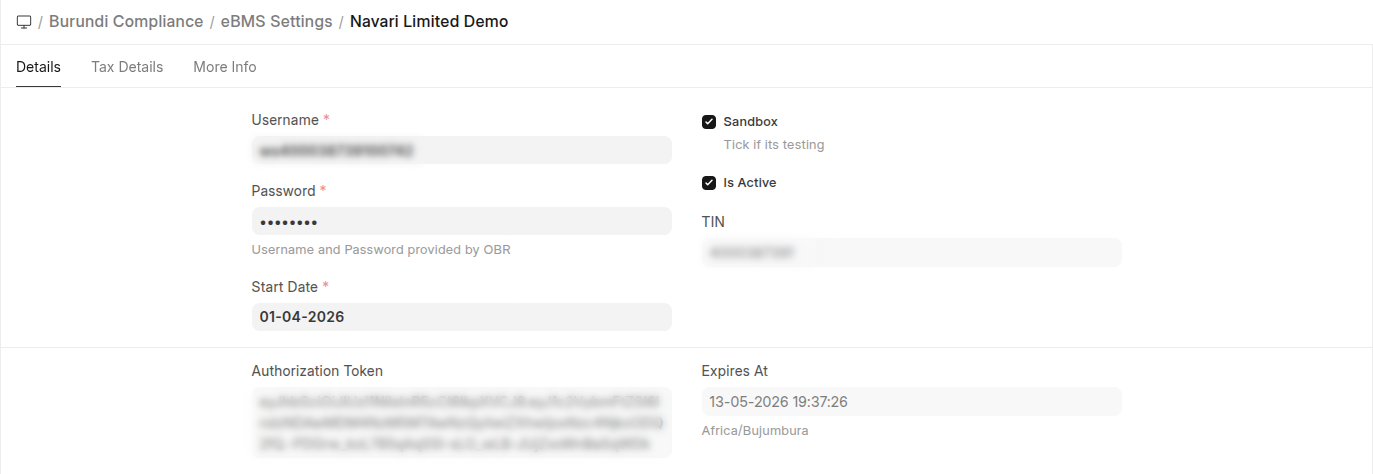
- Authentication: Fields for the
UsernameandPasswordprovided by the OBR upon account registration. - Environment: A Sandbox checkbox allows you to test the connection in a non-production environment before going live.
- Company: Allows you to select which company in your ERPNext system these settings apply to (useful if you manage multiple companies)
- Start Date: Specifies the date from which transactions should be sent to OBR.
- TIN: Auto-filled from the company's Tax ID.
- Is Active: Enables or disables the setting.
2. Tax Details Tab
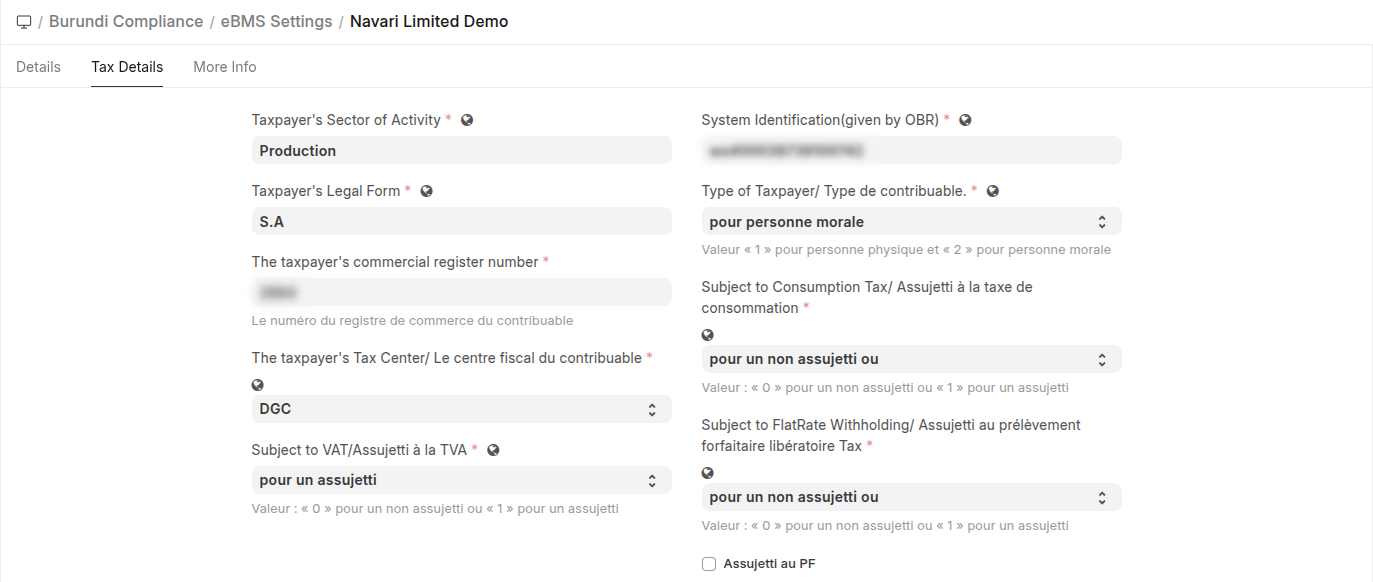
This tab stores your company's official legal and tax identification details. The system requires this information to be included on every electronic invoice sent to the OBR.
-
Taxpayer's Sector of Activity: - Specifies the Sector of Activity.
-
Taxpayer's Legal Form: -
-
The taxpayer's commercial register number:- This is the company's trade number.
-
Subject to VAT: - Specifies whether the taxpayer is subject to VAT or not.
-
System Identification:- Taxpayer's system number(computer serial no.)
-
Type of Taxpayer: - Can be individual or company.
-
Subject to Consumption Tax: - Defines whether taxpayer is subject to consumption tax or not.
-
Subject to FlatRate Withholding Tax: - Defines whether taxpayer can Withhold tax.
3. More Info Tab
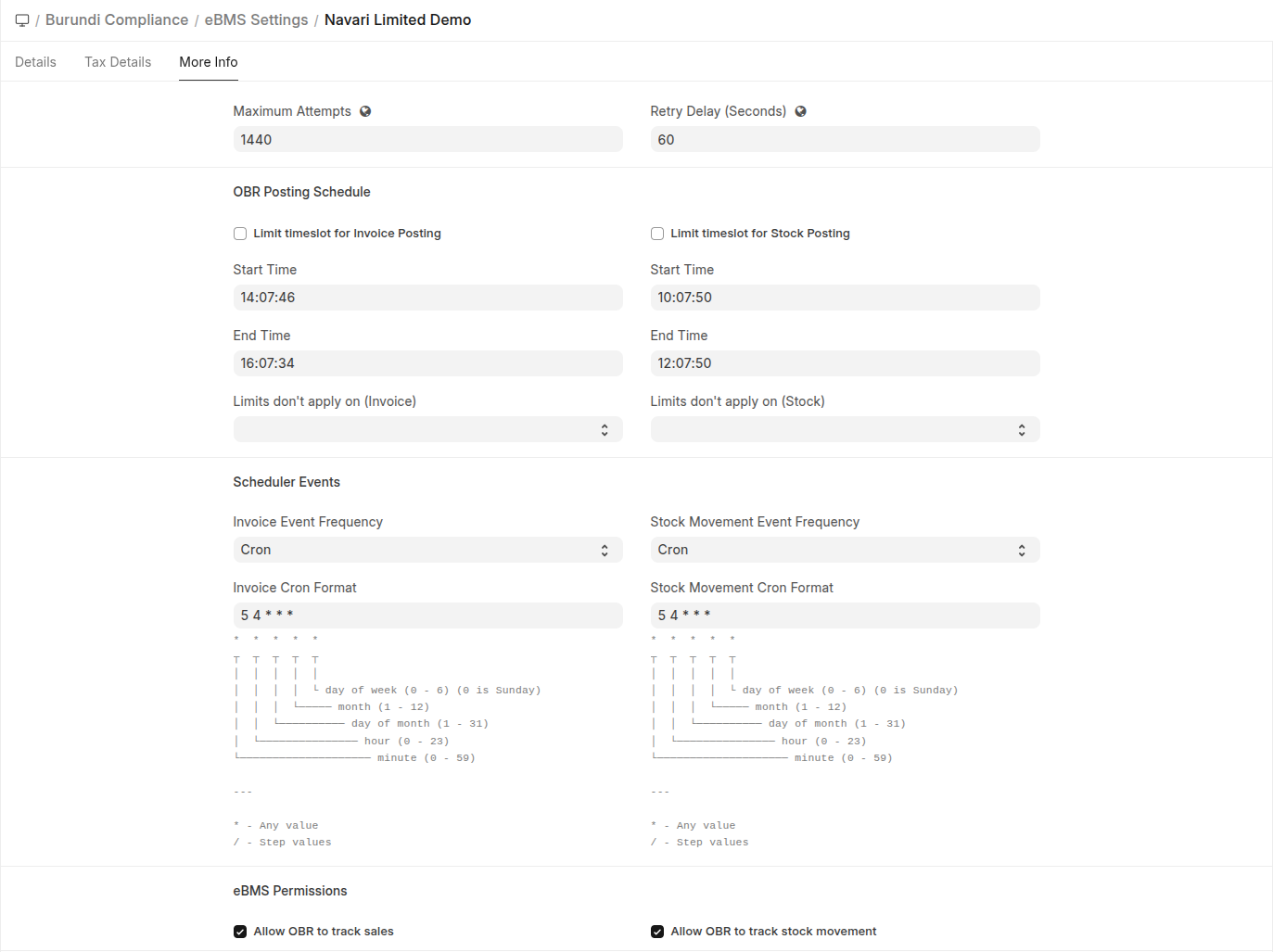
This section controls how the system behaves automatically, allowing you to manage communication retries and data synchronization schedules.
3.1 Retry Rules:
-
Maximum Attempts: How many times to try resending if the OBR server is down.
-
Retry Delay: The waiting time (in seconds) between each retry attempt.
3.2 Posting Schedule
Allows you to configure time slots for sending transactions (both invoices and stock movements) to OBR.
- Limit timeslot for Invoice Posting: Enables or disables time restrictions for invoice posting.
- Start Time & End Time: Defines the period during which invoice posting is allowed.
- Limits Don't Apply On: Specifies the days of the week when the time restrictions should be ignored.
Note: The same functionality is available for stock transactions using separate fields.
3.3 Data Sync Frequency:
-
Invoice Event Frequency: How often the system automatically sends invoices (e.g., daily, hourly).
-
Stock Movement Event Frequency: How often stock updates are sent to the OBR.
3.4 Feature Toggles:
-
Allow OBR to track sales: Master switch to enable/disable sending invoices.
-
Allow OBR to track stock movement: Master switch to enable/disable sending stock data.
-
Advanced Scheduling: Option to use Cron format to set a specific time each day for sending invoices.