


%20--%3E%3Cmetadata%20xmlns%3Ardf%3D%22http%3A%2F%2Fwww.w3.org%2F1999%2F02%2F22-rdf-syntax-ns%23%22%20xmlns%3Axsi%3D%22http%3A%2F%2Fwww.w3.org%2F2001%2FXMLSchema-instance%22%20xmlns%3Adc%3D%22http%3A%2F%2Fpurl.org%2Fdc%2Felements%2F1.1%2F%22%20xmlns%3Adcterms%3D%22http%3A%2F%2Fpurl.org%2Fdc%2Fterms%2F%22%3E%3Crdf%3ARDF%3E%3Crdf%3ADescription%3E%3Cdc%3Atitle%3EWaves%3C%2Fdc%3Atitle%3E%3Cdc%3Acreator%3EDiceBear%3C%2Fdc%3Acreator%3E%3Cdc%3Asource%20xsi%3Atype%3D%22dcterms%3AURI%22%3Ehttps%3A%2F%2Fwww.dicebear.com%3C%2Fdc%3Asource%3E%3Cdcterms%3Alicense%20xsi%3Atype%3D%22dcterms%3AURI%22%3Ehttps%3A%2F%2Fcreativecommons.org%2Fpublicdomain%2Fzero%2F1.0%2F%3C%2Fdcterms%3Alicense%3E%3Cdc%3Arights%3E%E2%80%9CWaves%E2%80%9D%20(https%3A%2F%2Fwww.dicebear.com)%20by%20%E2%80%9CDiceBear%E2%80%9D%2C%20licensed%20under%20%E2%80%9CCC0%201.0%E2%80%9D%20(https%3A%2F%2Fcreativecommons.org%2Fpublicdomain%2Fzero%2F1.0%2F)%3C%2Fdc%3Arights%3E%3C%2Frdf%3ADescription%3E%3C%2Frdf%3ARDF%3E%3C%2Fmetadata%3E%3Cdefs%3E%3Cg%20id%3D%22layer-ripple-e49e13db%22%3E%3Cpath%20d%3D%22M0%2012c6%200%2012%2010%2018%2010s12-10%2018-10%2012%2010%2018%2010%2012-10%2018-10%2012%2010%2018%2010%2012-10%2018-10%2012%2010%2018%2010%2012-10%2018-10%2012%2010%2018%2010%2012-10%2018-10%2012%206%2020%205v113H0Z%22%20fill%3D%22%23ffffff%22%2F%3E%3C%2Fg%3E%3Cg%20id%3D%22layer-rolling-e49e13db%22%3E%3Cpath%20d%3D%22M0%208c12%200%2023%2016%2035%2016S58%208%2070%208s23%2016%2035%2016%2023-16%2035-16%2023%2016%2035%2016c8%200%2017-8%2025-10v116H0Z%22%20fill%3D%22%23ffffff%22%2F%3E%3C%2Fg%3E%3Cg%20id%3D%22layer-calm-e49e13db%22%3E%3Cpath%20d%3D%22M0%2016c28%200%2052-6%2084-5s72%2010%20116%205v114H0Z%22%20fill%3D%22%23ffffff%22%2F%3E%3C%2Fg%3E%3Cg%20id%3D%22layer-surge-e49e13db%22%3E%3Cpath%20d%3D%22M0%206c24%200%2044%204%2062%2014%2016%208%2034%208%2052%202%2020-7%2038-12%2054-12%2012%200%2024%204%2032%206v114H0Z%22%20fill%3D%22%23ffffff%22%2F%3E%3C%2Fg%3E%3Cg%20id%3D%22body-quintet-e49e13db%22%3E%3Cg%20opacity%3D%22.14%22%3E%3Cg%20class%3D%22dbwa-l1%22%3E%3Cuse%20transform%3D%22translate(-50)%20translate(21.9728%2C%200.50011)%22%20href%3D%22%23layer-ripple-e49e13db%22%2F%3E%3C%2Fg%3E%3C%2Fg%3E%3Cg%20opacity%3D%22.24%22%3E%3Cg%20class%3D%22dbwa-l2%22%3E%3Cuse%20transform%3D%22translate(-50%2017)%20translate(5.9028%2C%20-4.66596)%22%20href%3D%22%23layer-rolling-e49e13db%22%2F%3E%3C%2Fg%3E%3C%2Fg%3E%3Cg%20opacity%3D%22.34%22%3E%3Cg%20class%3D%22dbwa-l3%22%3E%3Cuse%20transform%3D%22translate(-50%2034)%20translate(-14.5466%2C%201.70495)%22%20href%3D%22%23layer-calm-e49e13db%22%2F%3E%3C%2Fg%3E%3C%2Fg%3E%3Cg%20opacity%3D%22.42%22%3E%3Cg%20class%3D%22dbwa-l4%22%3E%3Cuse%20transform%3D%22translate(-50%2051)%20translate(11.789%2C%20-2.49886)%22%20href%3D%22%23layer-surge-e49e13db%22%2F%3E%3C%2Fg%3E%3C%2Fg%3E%3Cg%20opacity%3D%22.48%22%3E%3Cg%20class%3D%22dbwa-l5%22%3E%3Cuse%20transform%3D%22translate(-50%2068)%20translate(21.0082%2C%202.66877)%22%20href%3D%22%23layer-rolling-e49e13db%22%2F%3E%3C%2Fg%3E%3C%2Fg%3E%3C%2Fg%3E%3Cg%20id%3D%22bodyFree-default-e49e13db%22%3E%3Cuse%20href%3D%22%23body-quintet-e49e13db%22%2F%3E%3C%2Fg%3E%3Cg%20id%3D%22rotation-free-e49e13db%22%3E%3Cuse%20transform%3D%22rotate(-8.8373%2C%2050%2C%2050)%22%20href%3D%22%23bodyFree-default-e49e13db%22%2F%3E%3C%2Fg%3E%3Cg%20id%3D%22animation-none-e49e13db%22%3E%3C%2Fg%3E%3CclipPath%20id%3D%22clip-e49e13db%22%3E%3Crect%20width%3D%22100%22%20height%3D%22100%22%20rx%3D%220%22%20ry%3D%220%22%2F%3E%3C%2FclipPath%3E%3C%2Fdefs%3E%3Cg%20clip-path%3D%22url(%23clip-e49e13db)%22%3E%3Crect%20width%3D%22100%22%20height%3D%22100%22%20fill%3D%22%234338ca%22%2F%3E%3Cuse%20href%3D%22%23rotation-free-e49e13db%22%2F%3E%3Cuse%20href%3D%22%23animation-none-e49e13db%22%2F%3E%3C%2Fg%3E%3C%2Fsvg%3E)


Cash Customer Tax ID
VunaPOS allows a cashier to enter a customer’s Tax ID when the selected customer is marked as a walk-in customer.
This is useful when a cash customer does not have a dedicated ERPNext Customer record but still requires an invoice containing their tax identification details, such as for eTIMS or business expense purposes.
The Tax ID is captured for the current sale and included on the invoice created by VunaPOS.
When the Tax ID Field Appears
The Customer Tax ID field is available when the selected customer is configured as a walk-in customer.
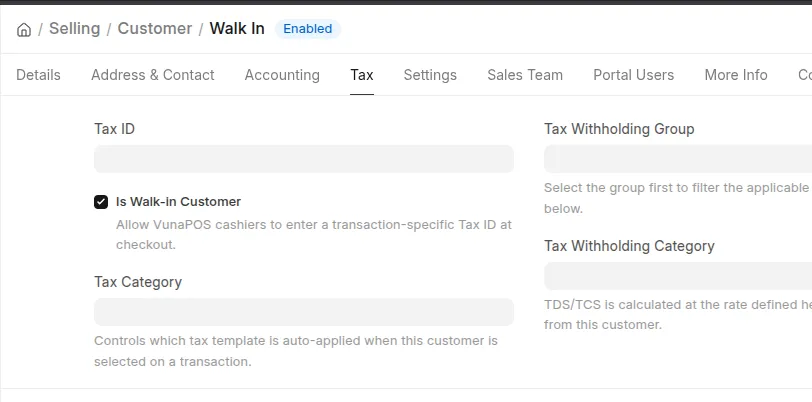 Is Walk-in Customer
If a regular customer is selected, VunaPOS uses the tax information already stored on that customer record.
This prevents the cashier from unnecessarily re-entering information that ERPNext already knows.
Enter a Customer Tax ID
To add a Tax ID for a walk-in customer:
- Open VunaPOS.
- Confirm that the selected customer is a walk-in customer.
- Add the required items to the cart.
- Open Checkout.
- Enter the customer’s Tax ID in the provided field.
- Review the invoice total and payment details.
- Complete the sale.
The Tax ID applies only to the current invoice unless the customer is later created as a permanent ERPNext Customer.
Example
A cash customer purchases goods worth KES 5,800.00 and requests an invoice for business use.
The cashier can use:
VunaPOS creates the invoice using the shared walk-in customer while attaching the entered Tax ID to that specific transaction.
This allows the customer to receive an invoice containing their tax information without creating a new Customer record for a one-time purchase.
How VunaPOS Uses the Tax ID
When the sale is completed, VunaPOS adds the entered Tax ID to the invoice created for the transaction.
The invoice may be either:
- Sales Invoice
- POS Invoice
The document type depends on the current POS Settings configuration.
The Tax ID is then available for downstream processes such as:
- invoice printing
- eTIMS integration
- fiscal reporting
- customer reference
- transaction audit
VunaPOS does not replace the selected walk-in customer with a new Customer record.
Important Notes
Note: The Tax ID field is intended for walk-in customers who need their own tax details included on a single invoice.
Note: For regular customers, maintain the Tax ID on the ERPNext Customer record instead of entering it manually during every sale.
Warning: Confirm the Tax ID before completing checkout. An incorrect Tax ID may result in an incorrect fiscal or tax invoice.
Warning: Once the invoice is submitted, correcting the Tax ID may require cancelling or amending the transaction, depending on permissions and fiscal integration rules.
Tax ID and eTIMS
Where an eTIMS integration is installed, the entered Tax ID can be passed with the invoice information used for fiscalisation.
This allows a walk-in customer to receive a tax invoice containing their own identification details even though the transaction uses the shared walk-in Customer record.
The exact fiscal behaviour depends on the eTIMS application installed on the site.
VunaPOS itself captures the Tax ID and attaches it to the invoice. Any external fiscal submission is handled by the configured integration.
Common Problems
Customer Tax ID Field Is Not Visible
Cause
The selected customer may not be marked as a walk-in customer.
Resolution
- Confirm the selected customer.
- Open the Customer record in ERPNext.
- Verify that the customer is configured as a walk-in customer.
- Return to VunaPOS and select the customer again.
Tax ID Is Not Included on the Invoice
Cause
The Tax ID may not have been entered before checkout, or the invoice field used by the integration may not be configured correctly.
Resolution
- Confirm the Tax ID was entered before completing the sale.
- Open the submitted invoice.
- Check whether the Tax ID was saved.
- Review the installed eTIMS or fiscal integration configuration where applicable.
Tax ID Is Invalid
Cause
The value may be incomplete, mistyped, or in an unsupported format.
Resolution
- Confirm the Tax ID with the customer.
- Correct the value before checkout.
- Retry the sale.
Customer Should Not Be a Walk-in Customer
Cause
The buyer may be a recurring customer whose details should be stored permanently.
Resolution
- Create or select the correct ERPNext Customer.
- Store the Tax ID on the Customer record.
- Use that customer for the sale instead of the shared walk-in customer.