


%20--%3E%3Cmetadata%20xmlns%3Ardf%3D%22http%3A%2F%2Fwww.w3.org%2F1999%2F02%2F22-rdf-syntax-ns%23%22%20xmlns%3Axsi%3D%22http%3A%2F%2Fwww.w3.org%2F2001%2FXMLSchema-instance%22%20xmlns%3Adc%3D%22http%3A%2F%2Fpurl.org%2Fdc%2Felements%2F1.1%2F%22%20xmlns%3Adcterms%3D%22http%3A%2F%2Fpurl.org%2Fdc%2Fterms%2F%22%3E%3Crdf%3ARDF%3E%3Crdf%3ADescription%3E%3Cdc%3Atitle%3EWaves%3C%2Fdc%3Atitle%3E%3Cdc%3Acreator%3EDiceBear%3C%2Fdc%3Acreator%3E%3Cdc%3Asource%20xsi%3Atype%3D%22dcterms%3AURI%22%3Ehttps%3A%2F%2Fwww.dicebear.com%3C%2Fdc%3Asource%3E%3Cdcterms%3Alicense%20xsi%3Atype%3D%22dcterms%3AURI%22%3Ehttps%3A%2F%2Fcreativecommons.org%2Fpublicdomain%2Fzero%2F1.0%2F%3C%2Fdcterms%3Alicense%3E%3Cdc%3Arights%3E%E2%80%9CWaves%E2%80%9D%20(https%3A%2F%2Fwww.dicebear.com)%20by%20%E2%80%9CDiceBear%E2%80%9D%2C%20licensed%20under%20%E2%80%9CCC0%201.0%E2%80%9D%20(https%3A%2F%2Fcreativecommons.org%2Fpublicdomain%2Fzero%2F1.0%2F)%3C%2Fdc%3Arights%3E%3C%2Frdf%3ADescription%3E%3C%2Frdf%3ARDF%3E%3C%2Fmetadata%3E%3Cdefs%3E%3Cg%20id%3D%22layer-ripple-e49e13db%22%3E%3Cpath%20d%3D%22M0%2012c6%200%2012%2010%2018%2010s12-10%2018-10%2012%2010%2018%2010%2012-10%2018-10%2012%2010%2018%2010%2012-10%2018-10%2012%2010%2018%2010%2012-10%2018-10%2012%2010%2018%2010%2012-10%2018-10%2012%206%2020%205v113H0Z%22%20fill%3D%22%23ffffff%22%2F%3E%3C%2Fg%3E%3Cg%20id%3D%22layer-rolling-e49e13db%22%3E%3Cpath%20d%3D%22M0%208c12%200%2023%2016%2035%2016S58%208%2070%208s23%2016%2035%2016%2023-16%2035-16%2023%2016%2035%2016c8%200%2017-8%2025-10v116H0Z%22%20fill%3D%22%23ffffff%22%2F%3E%3C%2Fg%3E%3Cg%20id%3D%22layer-calm-e49e13db%22%3E%3Cpath%20d%3D%22M0%2016c28%200%2052-6%2084-5s72%2010%20116%205v114H0Z%22%20fill%3D%22%23ffffff%22%2F%3E%3C%2Fg%3E%3Cg%20id%3D%22layer-surge-e49e13db%22%3E%3Cpath%20d%3D%22M0%206c24%200%2044%204%2062%2014%2016%208%2034%208%2052%202%2020-7%2038-12%2054-12%2012%200%2024%204%2032%206v114H0Z%22%20fill%3D%22%23ffffff%22%2F%3E%3C%2Fg%3E%3Cg%20id%3D%22body-quintet-e49e13db%22%3E%3Cg%20opacity%3D%22.14%22%3E%3Cg%20class%3D%22dbwa-l1%22%3E%3Cuse%20transform%3D%22translate(-50)%20translate(21.9728%2C%200.50011)%22%20href%3D%22%23layer-ripple-e49e13db%22%2F%3E%3C%2Fg%3E%3C%2Fg%3E%3Cg%20opacity%3D%22.24%22%3E%3Cg%20class%3D%22dbwa-l2%22%3E%3Cuse%20transform%3D%22translate(-50%2017)%20translate(5.9028%2C%20-4.66596)%22%20href%3D%22%23layer-rolling-e49e13db%22%2F%3E%3C%2Fg%3E%3C%2Fg%3E%3Cg%20opacity%3D%22.34%22%3E%3Cg%20class%3D%22dbwa-l3%22%3E%3Cuse%20transform%3D%22translate(-50%2034)%20translate(-14.5466%2C%201.70495)%22%20href%3D%22%23layer-calm-e49e13db%22%2F%3E%3C%2Fg%3E%3C%2Fg%3E%3Cg%20opacity%3D%22.42%22%3E%3Cg%20class%3D%22dbwa-l4%22%3E%3Cuse%20transform%3D%22translate(-50%2051)%20translate(11.789%2C%20-2.49886)%22%20href%3D%22%23layer-surge-e49e13db%22%2F%3E%3C%2Fg%3E%3C%2Fg%3E%3Cg%20opacity%3D%22.48%22%3E%3Cg%20class%3D%22dbwa-l5%22%3E%3Cuse%20transform%3D%22translate(-50%2068)%20translate(21.0082%2C%202.66877)%22%20href%3D%22%23layer-rolling-e49e13db%22%2F%3E%3C%2Fg%3E%3C%2Fg%3E%3C%2Fg%3E%3Cg%20id%3D%22bodyFree-default-e49e13db%22%3E%3Cuse%20href%3D%22%23body-quintet-e49e13db%22%2F%3E%3C%2Fg%3E%3Cg%20id%3D%22rotation-free-e49e13db%22%3E%3Cuse%20transform%3D%22rotate(-8.8373%2C%2050%2C%2050)%22%20href%3D%22%23bodyFree-default-e49e13db%22%2F%3E%3C%2Fg%3E%3Cg%20id%3D%22animation-none-e49e13db%22%3E%3C%2Fg%3E%3CclipPath%20id%3D%22clip-e49e13db%22%3E%3Crect%20width%3D%22100%22%20height%3D%22100%22%20rx%3D%220%22%20ry%3D%220%22%2F%3E%3C%2FclipPath%3E%3C%2Fdefs%3E%3Cg%20clip-path%3D%22url(%23clip-e49e13db)%22%3E%3Crect%20width%3D%22100%22%20height%3D%22100%22%20fill%3D%22%234338ca%22%2F%3E%3Cuse%20href%3D%22%23rotation-free-e49e13db%22%2F%3E%3Cuse%20href%3D%22%23animation-none-e49e13db%22%2F%3E%3C%2Fg%3E%3C%2Fsvg%3E)


Customer Loyalty Points
VunaPOS supports ERPNext Loyalty Program directly within the POS checkout flow.
When a customer enrolled in a Loyalty Program is selected, VunaPOS displays the customer’s available loyalty points and allows the cashier to redeem those points during checkout.
This makes it possible to reward repeat customers without leaving the POS or manually adjusting the invoice.
Requirements
Before loyalty points can be used in VunaPOS:
- Create and configure a Loyalty Program in ERPNext.
- Enroll the customer in the Loyalty Program.
- Ensure the customer has earned loyalty points.
- Confirm the selected customer is not the default walk-in customer unless that customer is intentionally enrolled.
VunaPOS reads loyalty information from ERPNext. It does not maintain a separate loyalty balance.
View Customer Loyalty Points
To view available loyalty points:
- Open VunaPOS.
- Select a customer enrolled in a Loyalty Program.
- Add items to the cart.
- Open Checkout.
VunaPOS displays the customer’s current loyalty points in the checkout page.
The displayed balance helps the cashier confirm whether the customer has enough points to redeem against the sale.
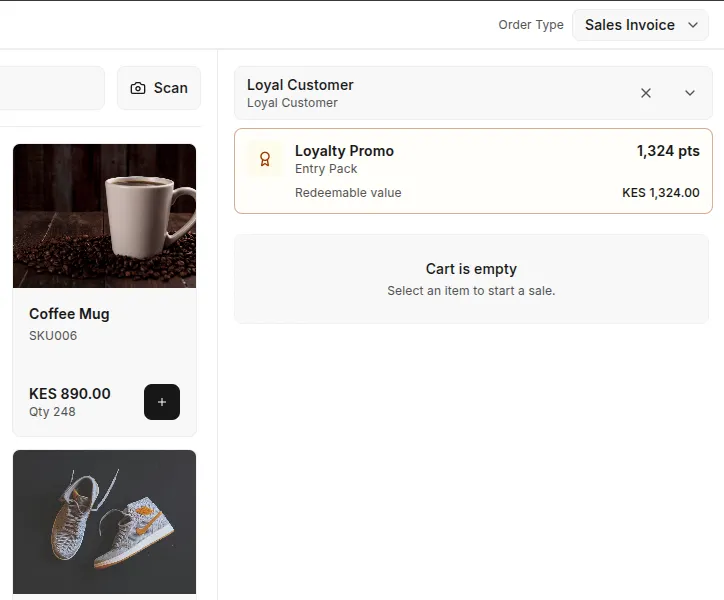 Selected Customer with loyalty points
Redeem Loyalty Points
To redeem points during checkout:
- Select an enrolled customer.
- Add the required items to the cart.
- Click Checkout.
- Review the customer’s available loyalty points.
- Enter or select the number of points to redeem.
- Confirm the loyalty redemption value.
- Select a Mode of Payment for any remaining amount.
- Complete the sale.
The loyalty redemption reduces the amount the customer needs to pay using Cash, M-Pesa, Card, or another Mode of Payment.
For example:
Grand Total: KES 1,300.00
Loyalty Redemption: KES 300.00
Amount Remaining: KES 1,000.00
The cashier then records payment for the remaining KES 1,200.00.
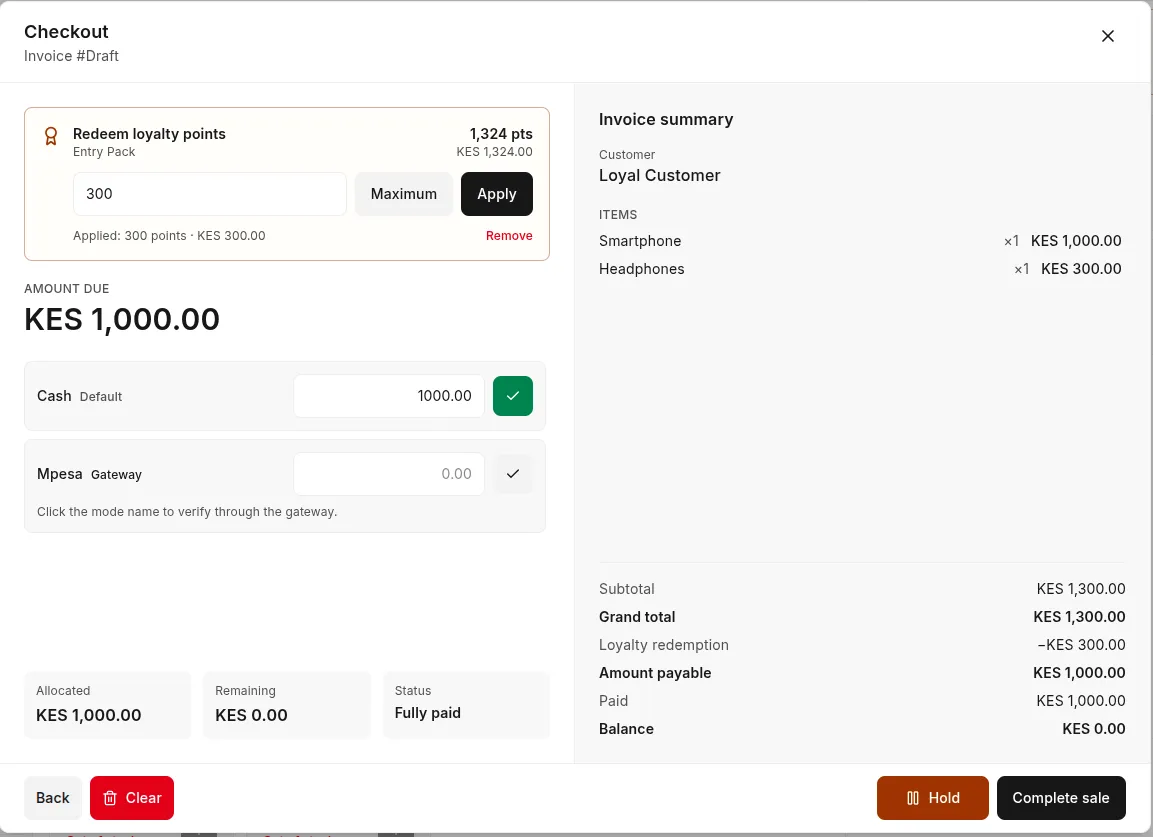 Redeeming Loyalty points in checkout page
Checkout Behaviour
When loyalty points are entered, VunaPOS validates the redemption before completing the sale.
The sale cannot be completed when:
- the customer is not enrolled in a Loyalty Program
- the customer does not have enough points
- the entered points exceed the available balance
- the redemption value exceeds the allowed amount
- the remaining payment amount does not match the invoice balance
The checkout page should always show the final amount remaining after loyalty redemption.
What Happens on the Invoice
When the sale is completed, VunaPOS submits the required Sales Invoice or POS Invoice with the loyalty redemption information.
ERPNext remains the source of truth for:
- available loyalty points
- redeemed points
- loyalty redemption amount
- points earned from the completed sale
- the customer’s updated loyalty balance
VunaPOS does not maintain a separate loyalty ledger.
Important Notes
Note: Loyalty points are customer-specific. Make sure the correct customer is selected before redeeming points.
Note: The redemption value depends on the Loyalty Program configuration in ERPNext.
Warning: Do not change the customer after loyalty points have been applied without recalculating the checkout.
Common Problems
Loyalty Points Are Not Displayed
Cause
The selected customer may not be enrolled in a Loyalty Program, or the customer may not have earned any points.
Resolution
- Open the customer in ERPNext.
- Confirm the customer is enrolled in a Loyalty Program.
- Check the customer’s available loyalty points.
- Return to VunaPOS and select the customer again.
The Customer Has Insufficient Points
Cause
The entered redemption amount requires more points than the customer currently has.
Resolution
- Review the available points shown in checkout.
- Reduce the number of points being redeemed.
- Use another Mode of Payment for the remaining amount.
Loyalty Redemption Exceeds the Sale Amount
Cause
The redemption value is greater than the invoice amount allowed for loyalty redemption.
Resolution
- Reduce the number of points entered.
- Confirm the remaining balance.
- Complete payment using the available payment methods.
Loyalty Balance Did Not Update
Cause
The invoice may not have submitted successfully, or ERPNext may not have completed the loyalty posting.
Resolution
- Confirm the Sales Invoice or POS Invoice is submitted.
- Review the loyalty information on the invoice.
- Check the customer’s Loyalty Point Entry records in ERPNext.
- Reload the customer in VunaPOS.