


%20--%3E%3Cmetadata%20xmlns%3Ardf%3D%22http%3A%2F%2Fwww.w3.org%2F1999%2F02%2F22-rdf-syntax-ns%23%22%20xmlns%3Axsi%3D%22http%3A%2F%2Fwww.w3.org%2F2001%2FXMLSchema-instance%22%20xmlns%3Adc%3D%22http%3A%2F%2Fpurl.org%2Fdc%2Felements%2F1.1%2F%22%20xmlns%3Adcterms%3D%22http%3A%2F%2Fpurl.org%2Fdc%2Fterms%2F%22%3E%3Crdf%3ARDF%3E%3Crdf%3ADescription%3E%3Cdc%3Atitle%3EWaves%3C%2Fdc%3Atitle%3E%3Cdc%3Acreator%3EDiceBear%3C%2Fdc%3Acreator%3E%3Cdc%3Asource%20xsi%3Atype%3D%22dcterms%3AURI%22%3Ehttps%3A%2F%2Fwww.dicebear.com%3C%2Fdc%3Asource%3E%3Cdcterms%3Alicense%20xsi%3Atype%3D%22dcterms%3AURI%22%3Ehttps%3A%2F%2Fcreativecommons.org%2Fpublicdomain%2Fzero%2F1.0%2F%3C%2Fdcterms%3Alicense%3E%3Cdc%3Arights%3E%E2%80%9CWaves%E2%80%9D%20(https%3A%2F%2Fwww.dicebear.com)%20by%20%E2%80%9CDiceBear%E2%80%9D%2C%20licensed%20under%20%E2%80%9CCC0%201.0%E2%80%9D%20(https%3A%2F%2Fcreativecommons.org%2Fpublicdomain%2Fzero%2F1.0%2F)%3C%2Fdc%3Arights%3E%3C%2Frdf%3ADescription%3E%3C%2Frdf%3ARDF%3E%3C%2Fmetadata%3E%3Cdefs%3E%3Cg%20id%3D%22layer-ripple-e49e13db%22%3E%3Cpath%20d%3D%22M0%2012c6%200%2012%2010%2018%2010s12-10%2018-10%2012%2010%2018%2010%2012-10%2018-10%2012%2010%2018%2010%2012-10%2018-10%2012%2010%2018%2010%2012-10%2018-10%2012%2010%2018%2010%2012-10%2018-10%2012%206%2020%205v113H0Z%22%20fill%3D%22%23ffffff%22%2F%3E%3C%2Fg%3E%3Cg%20id%3D%22layer-rolling-e49e13db%22%3E%3Cpath%20d%3D%22M0%208c12%200%2023%2016%2035%2016S58%208%2070%208s23%2016%2035%2016%2023-16%2035-16%2023%2016%2035%2016c8%200%2017-8%2025-10v116H0Z%22%20fill%3D%22%23ffffff%22%2F%3E%3C%2Fg%3E%3Cg%20id%3D%22layer-calm-e49e13db%22%3E%3Cpath%20d%3D%22M0%2016c28%200%2052-6%2084-5s72%2010%20116%205v114H0Z%22%20fill%3D%22%23ffffff%22%2F%3E%3C%2Fg%3E%3Cg%20id%3D%22layer-surge-e49e13db%22%3E%3Cpath%20d%3D%22M0%206c24%200%2044%204%2062%2014%2016%208%2034%208%2052%202%2020-7%2038-12%2054-12%2012%200%2024%204%2032%206v114H0Z%22%20fill%3D%22%23ffffff%22%2F%3E%3C%2Fg%3E%3Cg%20id%3D%22body-quintet-e49e13db%22%3E%3Cg%20opacity%3D%22.14%22%3E%3Cg%20class%3D%22dbwa-l1%22%3E%3Cuse%20transform%3D%22translate(-50)%20translate(21.9728%2C%200.50011)%22%20href%3D%22%23layer-ripple-e49e13db%22%2F%3E%3C%2Fg%3E%3C%2Fg%3E%3Cg%20opacity%3D%22.24%22%3E%3Cg%20class%3D%22dbwa-l2%22%3E%3Cuse%20transform%3D%22translate(-50%2017)%20translate(5.9028%2C%20-4.66596)%22%20href%3D%22%23layer-rolling-e49e13db%22%2F%3E%3C%2Fg%3E%3C%2Fg%3E%3Cg%20opacity%3D%22.34%22%3E%3Cg%20class%3D%22dbwa-l3%22%3E%3Cuse%20transform%3D%22translate(-50%2034)%20translate(-14.5466%2C%201.70495)%22%20href%3D%22%23layer-calm-e49e13db%22%2F%3E%3C%2Fg%3E%3C%2Fg%3E%3Cg%20opacity%3D%22.42%22%3E%3Cg%20class%3D%22dbwa-l4%22%3E%3Cuse%20transform%3D%22translate(-50%2051)%20translate(11.789%2C%20-2.49886)%22%20href%3D%22%23layer-surge-e49e13db%22%2F%3E%3C%2Fg%3E%3C%2Fg%3E%3Cg%20opacity%3D%22.48%22%3E%3Cg%20class%3D%22dbwa-l5%22%3E%3Cuse%20transform%3D%22translate(-50%2068)%20translate(21.0082%2C%202.66877)%22%20href%3D%22%23layer-rolling-e49e13db%22%2F%3E%3C%2Fg%3E%3C%2Fg%3E%3C%2Fg%3E%3Cg%20id%3D%22bodyFree-default-e49e13db%22%3E%3Cuse%20href%3D%22%23body-quintet-e49e13db%22%2F%3E%3C%2Fg%3E%3Cg%20id%3D%22rotation-free-e49e13db%22%3E%3Cuse%20transform%3D%22rotate(-8.8373%2C%2050%2C%2050)%22%20href%3D%22%23bodyFree-default-e49e13db%22%2F%3E%3C%2Fg%3E%3Cg%20id%3D%22animation-none-e49e13db%22%3E%3C%2Fg%3E%3CclipPath%20id%3D%22clip-e49e13db%22%3E%3Crect%20width%3D%22100%22%20height%3D%22100%22%20rx%3D%220%22%20ry%3D%220%22%2F%3E%3C%2FclipPath%3E%3C%2Fdefs%3E%3Cg%20clip-path%3D%22url(%23clip-e49e13db)%22%3E%3Crect%20width%3D%22100%22%20height%3D%22100%22%20fill%3D%22%234338ca%22%2F%3E%3Cuse%20href%3D%22%23rotation-free-e49e13db%22%2F%3E%3Cuse%20href%3D%22%23animation-none-e49e13db%22%2F%3E%3C%2Fg%3E%3C%2Fsvg%3E)


Once you have installed the app, you should first configure VunaPOS using the standard ERPNext POS Settings and POS Profile documents.
These documents define how invoices are created, which users can access the POS, which company and warehouse are used, how payments are recorded, and which defaults apply during checkout.
Before opening VunaPOS for the first time, it is recommended to complete the basic ERPNext selling and accounting setup and then review these two documents.
Recommended Setup Flow
- Configure Company and Accounts
- Create Warehouses
- Configure Items and Item Prices
- Set up Modes of Payment
- Configure POS Settings
- Create a POS Profile
- Assign POS Users
- Open VunaPOS and complete a test sale
Following this order helps ensure that stock, pricing, payments, taxes, and invoice creation behave predictably.
POS Settings
The POS Settings document controls the general invoice behavior used by VunaPOS.
One of the most important settings is the invoice type that should be created when a sale is completed.
VunaPOS supports:
- Sales Invoice
- POS Invoice
The selected option determines which ERPNext document VunaPOS creates and submits during checkout.
Invoice Type
| Field | Description | Usage |
|---|---|---|
| Invoice Type | Determines whether VunaPOS creates a Sales Invoice or POS Invoice. | Select the document type that matches your accounting and operational requirements. |
Sales Invoice
When Sales Invoice is selected, VunaPOS creates a standard ERPNext Sales Invoice.
This option is suitable when:
- You want to use the standard Sales Invoice workflow
- You want realtime stock and accounting transaction ledgers
- You need receivables and customer outstanding balances
- You want to support credit sales
- Your accounting process already relies heavily on Sales Invoice
The invoice can still behave like a POS transaction when the required POS fields and payment rows are provided.
POS Invoice
When POS Invoice is selected, VunaPOS creates an ERPNext POS Invoice.
This option is suitable when:
- You want a transaction document specifically designed for point-of-sale activity
- Most transactions are paid immediately
- You want to keep retail transactions separate from regular Sales Invoices
- You are using ERPNext’s POS Invoice workflow and related reports
Note: VunaPOS uses the option selected in POS Settings automatically. The cashier does not choose the invoice type during each sale.
POS Profile
The POS Profile document acts as the main configuration center for a VunaPOS counter.
It defines the company, warehouse, customer defaults, payment methods, pricing, print settings, and user assignments used when a cashier opens VunaPOS.
A POS Profile answers questions such as:
- Which company is making the sale?
- Which warehouse should stock be deducted from?
- Which customer should be used by default?
- Which price list should be applied?
- Which payment methods are available?
- Which users can access this POS setup?
- Which print format should be used?
- Which accounts should receive payments?
To open POS Profile, go to:
Home > Selling > POS > POS Profile
Company and Warehouse
These fields determine the accounting company and stock location used by the POS.
| Field | Description | Usage |
|---|---|---|
| Company | The ERPNext company used for invoice creation and accounting entries. | Select the company that owns the POS operation. |
| Warehouse | The warehouse from which stock is issued when items are sold. | Select the warehouse used by the branch, store, or counter. |
| Currency | The currency used for selling and payment amounts. | Usually inherited from the company or price list. |
The selected warehouse is also used when VunaPOS checks stock availability, batch quantities, and serial number availability.
Warning: If the warehouse is incorrect, stock may be deducted from the wrong location.
Customer Defaults
The POS Profile can define a default customer for transactions.
| Field | Description | Usage |
|---|---|---|
| Customer | The customer automatically selected when VunaPOS opens. | Commonly set to a Walk-in Customer for retail sales. |
| Customer Group | The default customer group used where applicable. | Helps apply pricing, taxes, and reporting rules. |
| Territory | The default territory associated with the customer setup. | Used for sales reporting and customer defaults. |
The cashier can still select another customer before adding items or completing checkout, depending on the current VunaPOS workflow.
A common setup is:
Customer: Walk-in Customer
Customer Group: All Customer Groups
Territory: All Territories
Price List and Pricing
The selling price list determines the item rates shown in VunaPOS.
| Field | Description | Usage |
|---|---|---|
| Selling Price List | The ERPNext price list used when loading item prices. | Select the price list used by the store or branch. |
| Currency | Currency associated with the price list. | Controls item and invoice currency. |
| Ignore Pricing Rule | Determines whether ERPNext pricing rules should be ignored. | Leave disabled if you want standard pricing rules to apply. |
VunaPOS relies on ERPNext pricing rules and item prices rather than maintaining a separate pricing system.
Modes of Payment
Modes of Payment define how customers can settle a sale.
Examples include:
- Cash
- M-Pesa
- Card
- Bank
- Mobile Money
- Credit
| Field | Description | Usage |
|---|---|---|
| Mode of Payment | The payment method available during checkout. | Add every payment method that cashiers should be able to select. |
| Default | Marks the payment method that should be selected automatically. | Useful when Cash is the most common payment method. |
| Account | The ledger account used for the payment method. | Required for correct accounting entries. |
The payment rows configured in POS Profile are displayed on the VunaPOS checkout page.
For example:
Cash
M-Pesa
Card
Bank
Note: Each Mode of Payment should have the correct company account configured in ERPNext.
User Allocation
The POS Profile can be assigned to specific users.
| Field | Description | Usage |
|---|---|---|
| Applicable For Users | Defines which users are allowed to use the profile. | Add each cashier or POS operator who should access VunaPOS. |
| User | The ERPNext user account assigned to the profile. | Select the correct cashier login. |
When a cashier opens VunaPOS, the system resolves the POS Profile available to that user.
This allows different branches or counters to have separate:
- Warehouses
- Companies
- Price lists
- Payment methods
- Customers
- Print formats
Print Format
The print format determines how receipts or invoices are rendered after checkout.
| Field | Description | Usage |
|---|---|---|
| Print Format | The ERPNext Print Format used after invoice submission. | Select a thermal receipt or standard invoice format. |
| Letter Head | Optional company letterhead used in printing. | Useful for A4 invoices or branded receipts. |
For thermal printers, create or select a compact print format designed for narrow receipt paper.
Common options include:
Thermal Receipt
POS Receipt
Standard Sales Invoice
Taxes and Charges
The POS Profile may define a default Sales Taxes and Charges Template.
| Field | Description | Usage |
|---|---|---|
| Taxes and Charges | The default tax template applied to the invoice. | Use this for VAT, sales tax, or other standard charges. |
| Tax Category | Used to apply tax rules based on the customer or transaction. | Configure where tax categories are part of your setup. |
VunaPOS uses ERPNext tax calculation as the source of truth.
It supports:
- Inclusive taxes
- Exclusive taxes
- Item Tax Templates
- Sales Taxes and Charges Templates
- Backend-calculated totals
Accounting Defaults
The POS Profile also provides accounting values required during invoice submission.
These may include:
| Field | Description |
|---|---|
| Income Account | The account credited when items are sold. |
| Expense Account | The account used for cost or expense recognition. |
| Cost Center | The cost center assigned to the transaction. |
| Write-Off Account | Account used for approved write-off amounts. |
| Account for Change Amount | Account used where cash tendered exceeds the sale amount. |
Most of these values can be inherited from the Item, Company, Warehouse, or Mode of Payment configuration.
Example POS Profile
A simple retail configuration may look like:
POS Profile: Main Store POS
Company: Vuna Retail Ltd
Warehouse: Main Store - VR
Customer: Walk-in Customer
Selling Price List: Standard Selling
Currency: KES
Print Format: Thermal Receipt
Applicable User: cashier@example.com
Modes of Payment:
Cash
M-Pesa
Card
Taxes and Charges:
Kenya VAT 16%
Before Opening VunaPOS
Before launching VunaPOS, confirm that:
- The correct invoice type is selected in POS Settings
- The POS Profile is enabled
- The cashier is assigned to the POS Profile
- The company and warehouse are correct
- A default customer is configured
- A selling price list is selected
- Modes of Payment have valid accounts
- A print format is selected
- Items have selling prices
- Stock is available in the selected warehouse
Media
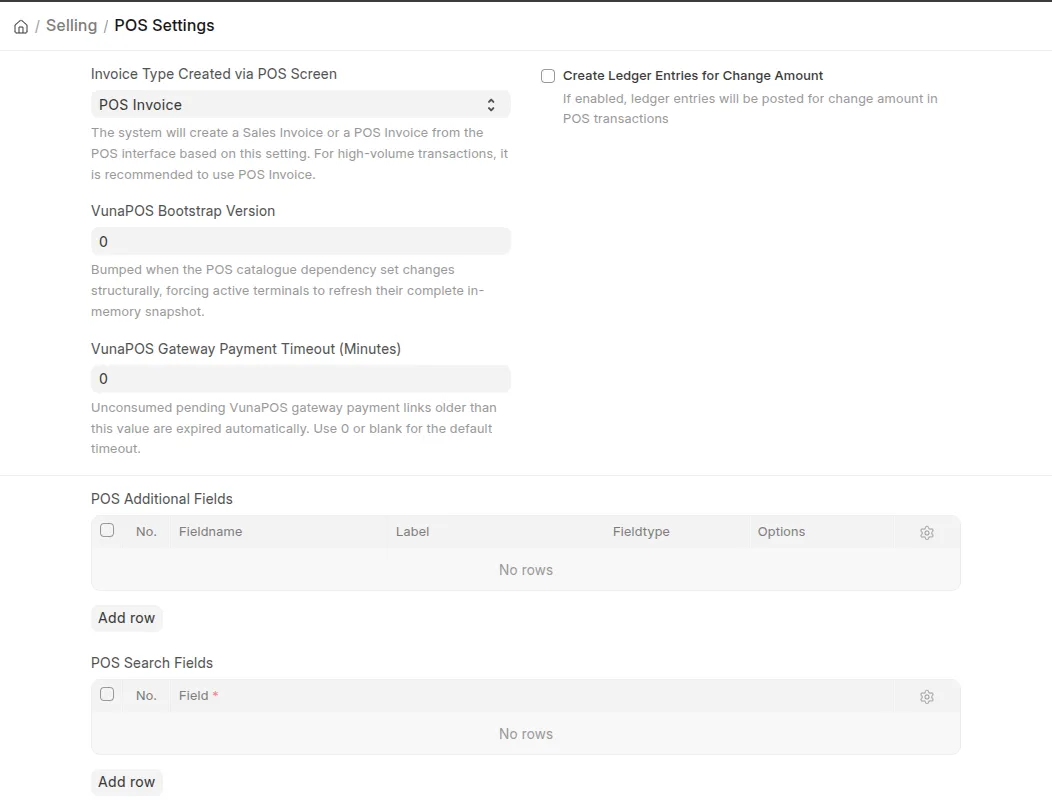 POS Settings
Next Steps
After completing the configuration:
- Open VunaPOS.
- Confirm the correct POS Profile is loaded.
- Search for an item.
- Add the item to the cart.
- Select or confirm the customer.
- Complete a test checkout.
- Verify the created invoice and accounting entries.
- Print the receipt.
Related Topics
- POS Workspace Overview
- Finding and Adding Items
- Selecting a Customer
- Modes of Payment
- Taxes and Pricing
- Checkout
- Printing a Receipt