
%20--%3E%3Cmetadata%20xmlns%3Ardf%3D%22http%3A%2F%2Fwww.w3.org%2F1999%2F02%2F22-rdf-syntax-ns%23%22%20xmlns%3Axsi%3D%22http%3A%2F%2Fwww.w3.org%2F2001%2FXMLSchema-instance%22%20xmlns%3Adc%3D%22http%3A%2F%2Fpurl.org%2Fdc%2Felements%2F1.1%2F%22%20xmlns%3Adcterms%3D%22http%3A%2F%2Fpurl.org%2Fdc%2Fterms%2F%22%3E%3Crdf%3ARDF%3E%3Crdf%3ADescription%3E%3Cdc%3Atitle%3EWaves%3C%2Fdc%3Atitle%3E%3Cdc%3Acreator%3EDiceBear%3C%2Fdc%3Acreator%3E%3Cdc%3Asource%20xsi%3Atype%3D%22dcterms%3AURI%22%3Ehttps%3A%2F%2Fwww.dicebear.com%3C%2Fdc%3Asource%3E%3Cdcterms%3Alicense%20xsi%3Atype%3D%22dcterms%3AURI%22%3Ehttps%3A%2F%2Fcreativecommons.org%2Fpublicdomain%2Fzero%2F1.0%2F%3C%2Fdcterms%3Alicense%3E%3Cdc%3Arights%3E%E2%80%9CWaves%E2%80%9D%20(https%3A%2F%2Fwww.dicebear.com)%20by%20%E2%80%9CDiceBear%E2%80%9D%2C%20licensed%20under%20%E2%80%9CCC0%201.0%E2%80%9D%20(https%3A%2F%2Fcreativecommons.org%2Fpublicdomain%2Fzero%2F1.0%2F)%3C%2Fdc%3Arights%3E%3C%2Frdf%3ADescription%3E%3C%2Frdf%3ARDF%3E%3C%2Fmetadata%3E%3Cdefs%3E%3Cg%20id%3D%22layer-ripple-e49e13db%22%3E%3Cpath%20d%3D%22M0%2012c6%200%2012%2010%2018%2010s12-10%2018-10%2012%2010%2018%2010%2012-10%2018-10%2012%2010%2018%2010%2012-10%2018-10%2012%2010%2018%2010%2012-10%2018-10%2012%2010%2018%2010%2012-10%2018-10%2012%206%2020%205v113H0Z%22%20fill%3D%22%23ffffff%22%2F%3E%3C%2Fg%3E%3Cg%20id%3D%22layer-rolling-e49e13db%22%3E%3Cpath%20d%3D%22M0%208c12%200%2023%2016%2035%2016S58%208%2070%208s23%2016%2035%2016%2023-16%2035-16%2023%2016%2035%2016c8%200%2017-8%2025-10v116H0Z%22%20fill%3D%22%23ffffff%22%2F%3E%3C%2Fg%3E%3Cg%20id%3D%22layer-calm-e49e13db%22%3E%3Cpath%20d%3D%22M0%2016c28%200%2052-6%2084-5s72%2010%20116%205v114H0Z%22%20fill%3D%22%23ffffff%22%2F%3E%3C%2Fg%3E%3Cg%20id%3D%22layer-surge-e49e13db%22%3E%3Cpath%20d%3D%22M0%206c24%200%2044%204%2062%2014%2016%208%2034%208%2052%202%2020-7%2038-12%2054-12%2012%200%2024%204%2032%206v114H0Z%22%20fill%3D%22%23ffffff%22%2F%3E%3C%2Fg%3E%3Cg%20id%3D%22body-quintet-e49e13db%22%3E%3Cg%20opacity%3D%22.14%22%3E%3Cg%20class%3D%22dbwa-l1%22%3E%3Cuse%20transform%3D%22translate(-50)%20translate(21.9728%2C%200.50011)%22%20href%3D%22%23layer-ripple-e49e13db%22%2F%3E%3C%2Fg%3E%3C%2Fg%3E%3Cg%20opacity%3D%22.24%22%3E%3Cg%20class%3D%22dbwa-l2%22%3E%3Cuse%20transform%3D%22translate(-50%2017)%20translate(5.9028%2C%20-4.66596)%22%20href%3D%22%23layer-rolling-e49e13db%22%2F%3E%3C%2Fg%3E%3C%2Fg%3E%3Cg%20opacity%3D%22.34%22%3E%3Cg%20class%3D%22dbwa-l3%22%3E%3Cuse%20transform%3D%22translate(-50%2034)%20translate(-14.5466%2C%201.70495)%22%20href%3D%22%23layer-calm-e49e13db%22%2F%3E%3C%2Fg%3E%3C%2Fg%3E%3Cg%20opacity%3D%22.42%22%3E%3Cg%20class%3D%22dbwa-l4%22%3E%3Cuse%20transform%3D%22translate(-50%2051)%20translate(11.789%2C%20-2.49886)%22%20href%3D%22%23layer-surge-e49e13db%22%2F%3E%3C%2Fg%3E%3C%2Fg%3E%3Cg%20opacity%3D%22.48%22%3E%3Cg%20class%3D%22dbwa-l5%22%3E%3Cuse%20transform%3D%22translate(-50%2068)%20translate(21.0082%2C%202.66877)%22%20href%3D%22%23layer-rolling-e49e13db%22%2F%3E%3C%2Fg%3E%3C%2Fg%3E%3C%2Fg%3E%3Cg%20id%3D%22bodyFree-default-e49e13db%22%3E%3Cuse%20href%3D%22%23body-quintet-e49e13db%22%2F%3E%3C%2Fg%3E%3Cg%20id%3D%22rotation-free-e49e13db%22%3E%3Cuse%20transform%3D%22rotate(-8.8373%2C%2050%2C%2050)%22%20href%3D%22%23bodyFree-default-e49e13db%22%2F%3E%3C%2Fg%3E%3Cg%20id%3D%22animation-none-e49e13db%22%3E%3C%2Fg%3E%3CclipPath%20id%3D%22clip-e49e13db%22%3E%3Crect%20width%3D%22100%22%20height%3D%22100%22%20rx%3D%220%22%20ry%3D%220%22%2F%3E%3C%2FclipPath%3E%3C%2Fdefs%3E%3Cg%20clip-path%3D%22url(%23clip-e49e13db)%22%3E%3Crect%20width%3D%22100%22%20height%3D%22100%22%20fill%3D%22%234338ca%22%2F%3E%3Cuse%20href%3D%22%23rotation-free-e49e13db%22%2F%3E%3Cuse%20href%3D%22%23animation-none-e49e13db%22%2F%3E%3C%2Fg%3E%3C%2Fsvg%3E)


C2B Payments (Customer to Business)
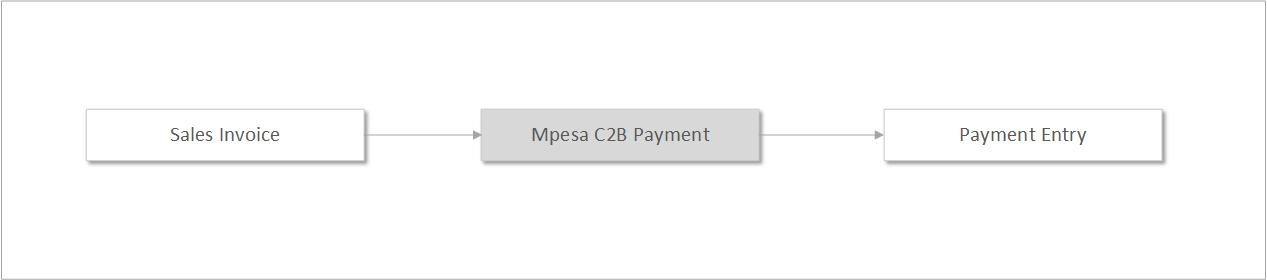
C2B integration allows your ERPNext instance to automatically receive and log payments made by customers via M-Pesa to your Paybill or Till number. Instead of manually recording each incoming payment, the system captures them in real time through Safaricom's Daraja callback mechanism.
 C2B
C2B
How It Works
When a customer makes an M-Pesa payment to your Paybill or Till number, Safaricom sends a notification (callback) to a URL registered on your server. The app captures this callback and records it as a Mpesa C2B Payment Register entry. From there, the payment can be matched to an outstanding invoice either automatically or manually.
Setup: Registering Callback URLs
Before any payments can be received, you must register your callback URLs with Safaricom. This is a one-time setup per Mpesa Settings configuration.
Steps
- Use the Awesome Bar or Mpesa workspace to navigate to Mpesa C2B Payment Register URL.
- Click New to create a new registration record.
- Fill in the following fields:
| Field | Description |
|---|---|
| Mpesa Settings | Select the C2B Mpesa Settings record. |
| Company | Select the company this registration is for. |
| Mode of Payment | Select the Mode of Payment linked to C2B. |
- Save the document.
After saving, the app sends a URL registration request to Safaricom's Daraja API. If successful, the Register Status field will update to Success.
Confirming Registration
Always verify that Register Status shows Success before expecting to receive callbacks. If it shows a failed state, refer to the troubleshooting steps below.
Receiving Payments
Once the URLs are registered:
- A customer makes an M-Pesa payment to your Paybill or Till number.
- Safaricom sends a callback to your registered URL.
- The app records the transaction in the Mpesa C2B Payment Register.
Each record captures:
- Customer name (as entered in M-Pesa)
- Transaction ID
- Transaction time and amount
- Bill Reference Number (account number entered by the customer)
- Business shortcode
Smart Matching Logic
When a customer makes a Paybill payment, M-Pesa prompts them to enter an account number. If the customer enters:
- A Sales Invoice number: the system checks if it matches an existing invoice and automatically links it.
- A Customer name or customer number: the system checks if it matches a customer record and automatically fills the Customer field on the payment register.
This matching happens automatically on callback receipt. Payments where the account number does not match any known reference remain unlinked and require manual reconciliation.
Auto-Reconciliation
If Auto Reconcile C2B Payments is enabled in Mpesa Settings:
- When a Mpesa C2B Payment Register record is submitted, the system attempts to find and match an outstanding invoice.
- If a matching invoice is found (by invoice number or customer reference), the payment is applied to it.
- If no specific invoice match is found, the payment is applied to the customer's oldest unpaid invoices using FIFO (First-In First-Out) logic.
If auto-reconciliation is disabled, submitted payment records must be matched manually using the Mpesa Payment Reconciliation tool.
Registration Failures: Common Causes and Fixes
| Problem | Solution |
|---|---|
| URLs are already registered | Log in to the Daraja Portal, navigate to Self Services, and delete the previously registered URLs. Then retry registration. |
| Bad Request | Verify all fields in the Mpesa Settings record are correctly filled. Check the Business Shortcode and API Type. |
| Invalid Access Token | Confirm the Consumer Key and Consumer Secret in Mpesa Settings are correct and have not been rotated. |