
%20--%3E%3Cmetadata%20xmlns%3Ardf%3D%22http%3A%2F%2Fwww.w3.org%2F1999%2F02%2F22-rdf-syntax-ns%23%22%20xmlns%3Axsi%3D%22http%3A%2F%2Fwww.w3.org%2F2001%2FXMLSchema-instance%22%20xmlns%3Adc%3D%22http%3A%2F%2Fpurl.org%2Fdc%2Felements%2F1.1%2F%22%20xmlns%3Adcterms%3D%22http%3A%2F%2Fpurl.org%2Fdc%2Fterms%2F%22%3E%3Crdf%3ARDF%3E%3Crdf%3ADescription%3E%3Cdc%3Atitle%3EWaves%3C%2Fdc%3Atitle%3E%3Cdc%3Acreator%3EDiceBear%3C%2Fdc%3Acreator%3E%3Cdc%3Asource%20xsi%3Atype%3D%22dcterms%3AURI%22%3Ehttps%3A%2F%2Fwww.dicebear.com%3C%2Fdc%3Asource%3E%3Cdcterms%3Alicense%20xsi%3Atype%3D%22dcterms%3AURI%22%3Ehttps%3A%2F%2Fcreativecommons.org%2Fpublicdomain%2Fzero%2F1.0%2F%3C%2Fdcterms%3Alicense%3E%3Cdc%3Arights%3E%E2%80%9CWaves%E2%80%9D%20(https%3A%2F%2Fwww.dicebear.com)%20by%20%E2%80%9CDiceBear%E2%80%9D%2C%20licensed%20under%20%E2%80%9CCC0%201.0%E2%80%9D%20(https%3A%2F%2Fcreativecommons.org%2Fpublicdomain%2Fzero%2F1.0%2F)%3C%2Fdc%3Arights%3E%3C%2Frdf%3ADescription%3E%3C%2Frdf%3ARDF%3E%3C%2Fmetadata%3E%3Cdefs%3E%3Cg%20id%3D%22layer-ripple-e49e13db%22%3E%3Cpath%20d%3D%22M0%2012c6%200%2012%2010%2018%2010s12-10%2018-10%2012%2010%2018%2010%2012-10%2018-10%2012%2010%2018%2010%2012-10%2018-10%2012%2010%2018%2010%2012-10%2018-10%2012%2010%2018%2010%2012-10%2018-10%2012%206%2020%205v113H0Z%22%20fill%3D%22%23ffffff%22%2F%3E%3C%2Fg%3E%3Cg%20id%3D%22layer-rolling-e49e13db%22%3E%3Cpath%20d%3D%22M0%208c12%200%2023%2016%2035%2016S58%208%2070%208s23%2016%2035%2016%2023-16%2035-16%2023%2016%2035%2016c8%200%2017-8%2025-10v116H0Z%22%20fill%3D%22%23ffffff%22%2F%3E%3C%2Fg%3E%3Cg%20id%3D%22layer-calm-e49e13db%22%3E%3Cpath%20d%3D%22M0%2016c28%200%2052-6%2084-5s72%2010%20116%205v114H0Z%22%20fill%3D%22%23ffffff%22%2F%3E%3C%2Fg%3E%3Cg%20id%3D%22layer-surge-e49e13db%22%3E%3Cpath%20d%3D%22M0%206c24%200%2044%204%2062%2014%2016%208%2034%208%2052%202%2020-7%2038-12%2054-12%2012%200%2024%204%2032%206v114H0Z%22%20fill%3D%22%23ffffff%22%2F%3E%3C%2Fg%3E%3Cg%20id%3D%22body-quintet-e49e13db%22%3E%3Cg%20opacity%3D%22.14%22%3E%3Cg%20class%3D%22dbwa-l1%22%3E%3Cuse%20transform%3D%22translate(-50)%20translate(21.9728%2C%200.50011)%22%20href%3D%22%23layer-ripple-e49e13db%22%2F%3E%3C%2Fg%3E%3C%2Fg%3E%3Cg%20opacity%3D%22.24%22%3E%3Cg%20class%3D%22dbwa-l2%22%3E%3Cuse%20transform%3D%22translate(-50%2017)%20translate(5.9028%2C%20-4.66596)%22%20href%3D%22%23layer-rolling-e49e13db%22%2F%3E%3C%2Fg%3E%3C%2Fg%3E%3Cg%20opacity%3D%22.34%22%3E%3Cg%20class%3D%22dbwa-l3%22%3E%3Cuse%20transform%3D%22translate(-50%2034)%20translate(-14.5466%2C%201.70495)%22%20href%3D%22%23layer-calm-e49e13db%22%2F%3E%3C%2Fg%3E%3C%2Fg%3E%3Cg%20opacity%3D%22.42%22%3E%3Cg%20class%3D%22dbwa-l4%22%3E%3Cuse%20transform%3D%22translate(-50%2051)%20translate(11.789%2C%20-2.49886)%22%20href%3D%22%23layer-surge-e49e13db%22%2F%3E%3C%2Fg%3E%3C%2Fg%3E%3Cg%20opacity%3D%22.48%22%3E%3Cg%20class%3D%22dbwa-l5%22%3E%3Cuse%20transform%3D%22translate(-50%2068)%20translate(21.0082%2C%202.66877)%22%20href%3D%22%23layer-rolling-e49e13db%22%2F%3E%3C%2Fg%3E%3C%2Fg%3E%3C%2Fg%3E%3Cg%20id%3D%22bodyFree-default-e49e13db%22%3E%3Cuse%20href%3D%22%23body-quintet-e49e13db%22%2F%3E%3C%2Fg%3E%3Cg%20id%3D%22rotation-free-e49e13db%22%3E%3Cuse%20transform%3D%22rotate(-8.8373%2C%2050%2C%2050)%22%20href%3D%22%23bodyFree-default-e49e13db%22%2F%3E%3C%2Fg%3E%3Cg%20id%3D%22animation-none-e49e13db%22%3E%3C%2Fg%3E%3CclipPath%20id%3D%22clip-e49e13db%22%3E%3Crect%20width%3D%22100%22%20height%3D%22100%22%20rx%3D%220%22%20ry%3D%220%22%2F%3E%3C%2FclipPath%3E%3C%2Fdefs%3E%3Cg%20clip-path%3D%22url(%23clip-e49e13db)%22%3E%3Crect%20width%3D%22100%22%20height%3D%22100%22%20fill%3D%22%234338ca%22%2F%3E%3Cuse%20href%3D%22%23rotation-free-e49e13db%22%2F%3E%3Cuse%20href%3D%22%23animation-none-e49e13db%22%2F%3E%3C%2Fg%3E%3C%2Fsvg%3E)


2.1 Mpesa Express (STK Push)
Mpesa Express (STK Push)
Mpesa Express, commonly referred to as STK Push (Sim Toolkit Push), is a payment method that sends a payment prompt directly to a customer's phone. The customer receives a pop-up on their screen asking them to enter their M-Pesa PIN to complete the payment. This eliminates the need for the customer to navigate a Paybill menu manually.
How It Works
- A Payment Request is created in ERPNext linked to a Sales Invoice, Sales Order, or POS session.
- The Mode of Payment on the Payment Request is set to one connected to an Mpesa Express Settings record.
- The customer's phone number is entered in the To field.
- Once the Payment Request is saved, the system sends an STK Push to the customer's phone via the Daraja API.
- The customer enters their M-Pesa PIN on their phone to authorize the payment.
- Safaricom sends a callback to your server confirming the transaction.
- The Payment Request is automatically marked as completed and a Payment Entry is created against the transaction.
Supported Entry Points
STK Push can be triggered from the following documents in ERPNext:
- Sales Invoice (Credit)
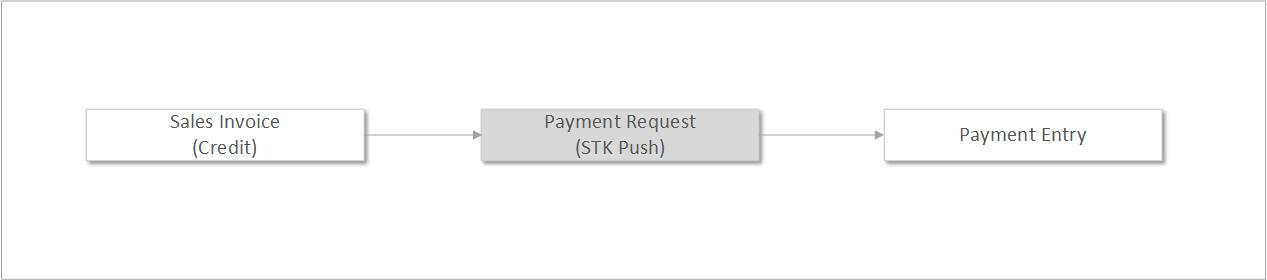 Sales Invoice
 - Sales Order
 Sales Order
 - POS (Point of Sale)
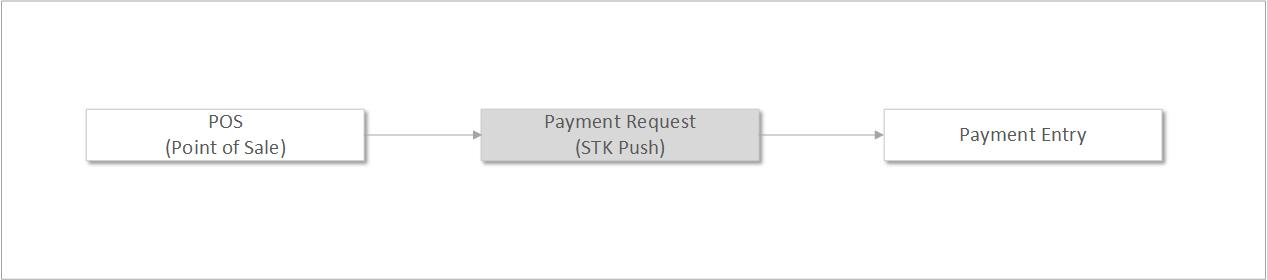 Point Of Sale (POS)
 - Webshop (E-Commerce): for online orders placed through the ERPNext Webshop
 WebShop
 - Sales Invoice of type POS
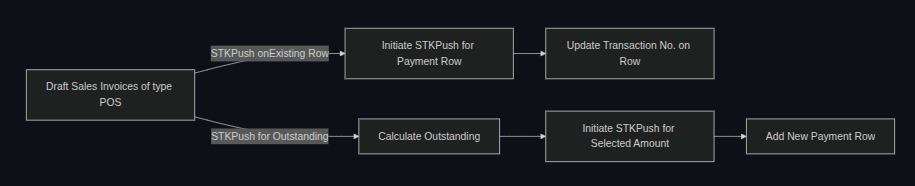 Sales Invoice (Type POS)
Step-by-Step Guide
Step 1: Ensure Mpesa Settings is Configured
Confirm that an Mpesa Settings record exists with API Type set to Mpesa Express and that it is linked to a Mode of Payment.
Step 2: Open the Source Document
Open the relevant Sales Invoice, Sales Order, or POS session in ERPNext.
Step 3: Create a Payment Request
From the document's action menu, select Create > Payment Request (the exact label depends on the document type).
Step 4: Configure the Payment Request
Fill in the following fields:
| Field | Value |
|---|---|
| Payment Channel | Phone |
| Mode of Payment | Select the Mode of Payment linked to your Mpesa Express Settings |
| To | Enter the customer's phone number in the format 2547XXXXXXXX |
Step 5: Save the Payment Request
Click Save. The system will immediately trigger the STK Push to the customer's phone number.
Step 6: Customer Authorizes Payment
The customer receives a prompt on their phone displaying the amount and the business name. They enter their M-Pesa PIN to authorize.
Step 7: Automatic Completion
Once the customer completes the transaction, Safaricom sends a callback to your server. The Payment Request status updates to Paid and a Payment Entry is created automatically.
What Happens If the Customer Does Not Respond?
If the customer dismisses the prompt or does not respond, the STK Push request will time out. The Payment Request will remain in a pending state. You can resend the request by saving the Payment Request again or creating a new one.
Phone Number Format
Phone numbers must be entered in the international format without the leading zero or plus sign:
| Input | Correct Format |
|---|---|
| 0722123456 | 254722123456 |
| +254722123456 | 254722123456 |
| 0733987654 | 254733987654 |