
%20--%3E%3Cmetadata%20xmlns%3Ardf%3D%22http%3A%2F%2Fwww.w3.org%2F1999%2F02%2F22-rdf-syntax-ns%23%22%20xmlns%3Axsi%3D%22http%3A%2F%2Fwww.w3.org%2F2001%2FXMLSchema-instance%22%20xmlns%3Adc%3D%22http%3A%2F%2Fpurl.org%2Fdc%2Felements%2F1.1%2F%22%20xmlns%3Adcterms%3D%22http%3A%2F%2Fpurl.org%2Fdc%2Fterms%2F%22%3E%3Crdf%3ARDF%3E%3Crdf%3ADescription%3E%3Cdc%3Atitle%3ELoops%3C%2Fdc%3Atitle%3E%3Cdc%3Acreator%3EDiceBear%3C%2Fdc%3Acreator%3E%3Cdc%3Asource%20xsi%3Atype%3D%22dcterms%3AURI%22%3Ehttps%3A%2F%2Fwww.dicebear.com%3C%2Fdc%3Asource%3E%3Cdcterms%3Alicense%20xsi%3Atype%3D%22dcterms%3AURI%22%3Ehttps%3A%2F%2Fcreativecommons.org%2Fpublicdomain%2Fzero%2F1.0%2F%3C%2Fdcterms%3Alicense%3E%3Cdc%3Arights%3E%E2%80%9CLoops%E2%80%9D%20(https%3A%2F%2Fwww.dicebear.com)%20by%20%E2%80%9CDiceBear%E2%80%9D%2C%20licensed%20under%20%E2%80%9CCC0%201.0%E2%80%9D%20(https%3A%2F%2Fcreativecommons.org%2Fpublicdomain%2Fzero%2F1.0%2F)%3C%2Fdc%3Arights%3E%3C%2Frdf%3ADescription%3E%3C%2Frdf%3ARDF%3E%3C%2Fmetadata%3E%3Cdefs%3E%3Cg%20id%3D%22tile-default-bd85266d%22%3E%3Cpath%20d%3D%22M0%2014A14%2014%200%200%201%2014%200m0%2028a14%2014%200%200%200%2014-14%22%20stroke-width%3D%228%22%20stroke%3D%22%23ffffff%22%2F%3E%3C%2Fg%3E%3Cg%20id%3D%22pattern-default-bd85266d%22%3E%3Cg%20style%3D%22mix-blend-mode%3Aoverlay%22%3E%3Cg%20class%3D%22dblo-g1%22%3E%3Cuse%20transform%3D%22translate(4%204)%22%20href%3D%22%23tile-default-bd85266d%22%2F%3E%3C%2Fg%3E%3Cg%20class%3D%22dblo-g2%22%3E%3Cuse%20transform%3D%22translate(32%204)%22%20href%3D%22%23tile-default-bd85266d%22%2F%3E%3C%2Fg%3E%3Cg%20class%3D%22dblo-g3%22%3E%3Cuse%20transform%3D%22translate(60%204)%22%20href%3D%22%23tile-default-bd85266d%22%2F%3E%3C%2Fg%3E%3Cg%20class%3D%22dblo-g1%22%3E%3Cuse%20transform%3D%22translate(4%2032)%20rotate(90%2C%2014%2C%2014)%22%20href%3D%22%23tile-default-bd85266d%22%2F%3E%3C%2Fg%3E%3Cg%20class%3D%22dblo-g2%22%3E%3Cuse%20transform%3D%22translate(32%2032)%22%20href%3D%22%23tile-default-bd85266d%22%2F%3E%3C%2Fg%3E%3Cg%20class%3D%22dblo-g3%22%3E%3Cuse%20transform%3D%22translate(60%2032)%20rotate(90%2C%2014%2C%2014)%22%20href%3D%22%23tile-default-bd85266d%22%2F%3E%3C%2Fg%3E%3Cg%20class%3D%22dblo-g1%22%3E%3Cuse%20transform%3D%22translate(4%2060)%22%20href%3D%22%23tile-default-bd85266d%22%2F%3E%3C%2Fg%3E%3Cg%20class%3D%22dblo-g2%22%3E%3Cuse%20transform%3D%22translate(32%2060)%22%20href%3D%22%23tile-default-bd85266d%22%2F%3E%3C%2Fg%3E%3Cg%20class%3D%22dblo-g3%22%3E%3Cuse%20transform%3D%22translate(60%2060)%22%20href%3D%22%23tile-default-bd85266d%22%2F%3E%3C%2Fg%3E%3C%2Fg%3E%3Cg%20opacity%3D%22.5%22%3E%3Cg%20class%3D%22dblo-g1%22%3E%3Cuse%20transform%3D%22translate(4%204)%22%20href%3D%22%23tile-default-bd85266d%22%2F%3E%3C%2Fg%3E%3Cg%20class%3D%22dblo-g2%22%3E%3Cuse%20transform%3D%22translate(32%204)%22%20href%3D%22%23tile-default-bd85266d%22%2F%3E%3C%2Fg%3E%3Cg%20class%3D%22dblo-g3%22%3E%3Cuse%20transform%3D%22translate(60%204)%22%20href%3D%22%23tile-default-bd85266d%22%2F%3E%3C%2Fg%3E%3Cg%20class%3D%22dblo-g1%22%3E%3Cuse%20transform%3D%22translate(4%2032)%20rotate(90%2C%2014%2C%2014)%22%20href%3D%22%23tile-default-bd85266d%22%2F%3E%3C%2Fg%3E%3Cg%20class%3D%22dblo-g2%22%3E%3Cuse%20transform%3D%22translate(32%2032)%22%20href%3D%22%23tile-default-bd85266d%22%2F%3E%3C%2Fg%3E%3Cg%20class%3D%22dblo-g3%22%3E%3Cuse%20transform%3D%22translate(60%2032)%20rotate(90%2C%2014%2C%2014)%22%20href%3D%22%23tile-default-bd85266d%22%2F%3E%3C%2Fg%3E%3Cg%20class%3D%22dblo-g1%22%3E%3Cuse%20transform%3D%22translate(4%2060)%22%20href%3D%22%23tile-default-bd85266d%22%2F%3E%3C%2Fg%3E%3Cg%20class%3D%22dblo-g2%22%3E%3Cuse%20transform%3D%22translate(32%2060)%22%20href%3D%22%23tile-default-bd85266d%22%2F%3E%3C%2Fg%3E%3Cg%20class%3D%22dblo-g3%22%3E%3Cuse%20transform%3D%22translate(60%2060)%22%20href%3D%22%23tile-default-bd85266d%22%2F%3E%3C%2Fg%3E%3C%2Fg%3E%3C%2Fg%3E%3Cg%20id%3D%22animation-none-bd85266d%22%3E%3C%2Fg%3E%3CclipPath%20id%3D%22clip-bd85266d%22%3E%3Crect%20width%3D%22100%22%20height%3D%22100%22%20rx%3D%220%22%20ry%3D%220%22%2F%3E%3C%2FclipPath%3E%3C%2Fdefs%3E%3Cg%20clip-path%3D%22url(%23clip-bd85266d)%22%3E%3Crect%20width%3D%22100%22%20height%3D%22100%22%20fill%3D%22%23c2410c%22%2F%3E%3Cuse%20transform%3D%22translate(4%204)%22%20href%3D%22%23pattern-default-bd85266d%22%2F%3E%3Cuse%20href%3D%22%23animation-none-bd85266d%22%2F%3E%3C%2Fg%3E%3C%2Fsvg%3E)



%20--%3E%3Cmetadata%20xmlns%3Ardf%3D%22http%3A%2F%2Fwww.w3.org%2F1999%2F02%2F22-rdf-syntax-ns%23%22%20xmlns%3Axsi%3D%22http%3A%2F%2Fwww.w3.org%2F2001%2FXMLSchema-instance%22%20xmlns%3Adc%3D%22http%3A%2F%2Fpurl.org%2Fdc%2Felements%2F1.1%2F%22%20xmlns%3Adcterms%3D%22http%3A%2F%2Fpurl.org%2Fdc%2Fterms%2F%22%3E%3Crdf%3ARDF%3E%3Crdf%3ADescription%3E%3Cdc%3Atitle%3ELoops%3C%2Fdc%3Atitle%3E%3Cdc%3Acreator%3EDiceBear%3C%2Fdc%3Acreator%3E%3Cdc%3Asource%20xsi%3Atype%3D%22dcterms%3AURI%22%3Ehttps%3A%2F%2Fwww.dicebear.com%3C%2Fdc%3Asource%3E%3Cdcterms%3Alicense%20xsi%3Atype%3D%22dcterms%3AURI%22%3Ehttps%3A%2F%2Fcreativecommons.org%2Fpublicdomain%2Fzero%2F1.0%2F%3C%2Fdcterms%3Alicense%3E%3Cdc%3Arights%3E%E2%80%9CLoops%E2%80%9D%20(https%3A%2F%2Fwww.dicebear.com)%20by%20%E2%80%9CDiceBear%E2%80%9D%2C%20licensed%20under%20%E2%80%9CCC0%201.0%E2%80%9D%20(https%3A%2F%2Fcreativecommons.org%2Fpublicdomain%2Fzero%2F1.0%2F)%3C%2Fdc%3Arights%3E%3C%2Frdf%3ADescription%3E%3C%2Frdf%3ARDF%3E%3C%2Fmetadata%3E%3Cdefs%3E%3Cg%20id%3D%22tile-default-c50917e1%22%3E%3Cpath%20d%3D%22M0%2014A14%2014%200%200%201%2014%200m0%2028a14%2014%200%200%200%2014-14%22%20stroke-width%3D%228%22%20stroke%3D%22%23ffffff%22%2F%3E%3C%2Fg%3E%3Cg%20id%3D%22pattern-default-c50917e1%22%3E%3Cg%20style%3D%22mix-blend-mode%3Aoverlay%22%3E%3Cg%20class%3D%22dblo-g1%22%3E%3Cuse%20transform%3D%22translate(4%204)%20rotate(90%2C%2014%2C%2014)%22%20href%3D%22%23tile-default-c50917e1%22%2F%3E%3C%2Fg%3E%3Cg%20class%3D%22dblo-g2%22%3E%3Cuse%20transform%3D%22translate(32%204)%22%20href%3D%22%23tile-default-c50917e1%22%2F%3E%3C%2Fg%3E%3Cg%20class%3D%22dblo-g3%22%3E%3Cuse%20transform%3D%22translate(60%204)%20rotate(90%2C%2014%2C%2014)%22%20href%3D%22%23tile-default-c50917e1%22%2F%3E%3C%2Fg%3E%3Cg%20class%3D%22dblo-g1%22%3E%3Cuse%20transform%3D%22translate(4%2032)%20rotate(90%2C%2014%2C%2014)%22%20href%3D%22%23tile-default-c50917e1%22%2F%3E%3C%2Fg%3E%3Cg%20class%3D%22dblo-g2%22%3E%3Cuse%20transform%3D%22translate(32%2032)%22%20href%3D%22%23tile-default-c50917e1%22%2F%3E%3C%2Fg%3E%3Cg%20class%3D%22dblo-g3%22%3E%3Cuse%20transform%3D%22translate(60%2032)%20rotate(90%2C%2014%2C%2014)%22%20href%3D%22%23tile-default-c50917e1%22%2F%3E%3C%2Fg%3E%3Cg%20class%3D%22dblo-g1%22%3E%3Cuse%20transform%3D%22translate(4%2060)%22%20href%3D%22%23tile-default-c50917e1%22%2F%3E%3C%2Fg%3E%3Cg%20class%3D%22dblo-g2%22%3E%3Cuse%20transform%3D%22translate(32%2060)%22%20href%3D%22%23tile-default-c50917e1%22%2F%3E%3C%2Fg%3E%3Cg%20class%3D%22dblo-g3%22%3E%3Cuse%20transform%3D%22translate(60%2060)%20rotate(90%2C%2014%2C%2014)%22%20href%3D%22%23tile-default-c50917e1%22%2F%3E%3C%2Fg%3E%3C%2Fg%3E%3Cg%20opacity%3D%22.5%22%3E%3Cg%20class%3D%22dblo-g1%22%3E%3Cuse%20transform%3D%22translate(4%204)%20rotate(90%2C%2014%2C%2014)%22%20href%3D%22%23tile-default-c50917e1%22%2F%3E%3C%2Fg%3E%3Cg%20class%3D%22dblo-g2%22%3E%3Cuse%20transform%3D%22translate(32%204)%22%20href%3D%22%23tile-default-c50917e1%22%2F%3E%3C%2Fg%3E%3Cg%20class%3D%22dblo-g3%22%3E%3Cuse%20transform%3D%22translate(60%204)%20rotate(90%2C%2014%2C%2014)%22%20href%3D%22%23tile-default-c50917e1%22%2F%3E%3C%2Fg%3E%3Cg%20class%3D%22dblo-g1%22%3E%3Cuse%20transform%3D%22translate(4%2032)%20rotate(90%2C%2014%2C%2014)%22%20href%3D%22%23tile-default-c50917e1%22%2F%3E%3C%2Fg%3E%3Cg%20class%3D%22dblo-g2%22%3E%3Cuse%20transform%3D%22translate(32%2032)%22%20href%3D%22%23tile-default-c50917e1%22%2F%3E%3C%2Fg%3E%3Cg%20class%3D%22dblo-g3%22%3E%3Cuse%20transform%3D%22translate(60%2032)%20rotate(90%2C%2014%2C%2014)%22%20href%3D%22%23tile-default-c50917e1%22%2F%3E%3C%2Fg%3E%3Cg%20class%3D%22dblo-g1%22%3E%3Cuse%20transform%3D%22translate(4%2060)%22%20href%3D%22%23tile-default-c50917e1%22%2F%3E%3C%2Fg%3E%3Cg%20class%3D%22dblo-g2%22%3E%3Cuse%20transform%3D%22translate(32%2060)%22%20href%3D%22%23tile-default-c50917e1%22%2F%3E%3C%2Fg%3E%3Cg%20class%3D%22dblo-g3%22%3E%3Cuse%20transform%3D%22translate(60%2060)%20rotate(90%2C%2014%2C%2014)%22%20href%3D%22%23tile-default-c50917e1%22%2F%3E%3C%2Fg%3E%3C%2Fg%3E%3C%2Fg%3E%3Cg%20id%3D%22animation-none-c50917e1%22%3E%3C%2Fg%3E%3CclipPath%20id%3D%22clip-c50917e1%22%3E%3Crect%20width%3D%22100%22%20height%3D%22100%22%20rx%3D%220%22%20ry%3D%220%22%2F%3E%3C%2FclipPath%3E%3C%2Fdefs%3E%3Cg%20clip-path%3D%22url(%23clip-c50917e1)%22%3E%3Crect%20width%3D%22100%22%20height%3D%22100%22%20fill%3D%22%230f766e%22%2F%3E%3Cuse%20transform%3D%22translate(4%204)%22%20href%3D%22%23pattern-default-c50917e1%22%2F%3E%3Cuse%20href%3D%22%23animation-none-c50917e1%22%2F%3E%3C%2Fg%3E%3C%2Fsvg%3E)



2.3 Sourcing Settings
Sourcing Settings holds the app-wide settings. Open it from Sourcing → Settings → Sourcing Settings. It has five tabs, and two buttons at the top: Portal Signup Link and Invite Supplier (see Invitations and Sign-up).
Onboarding
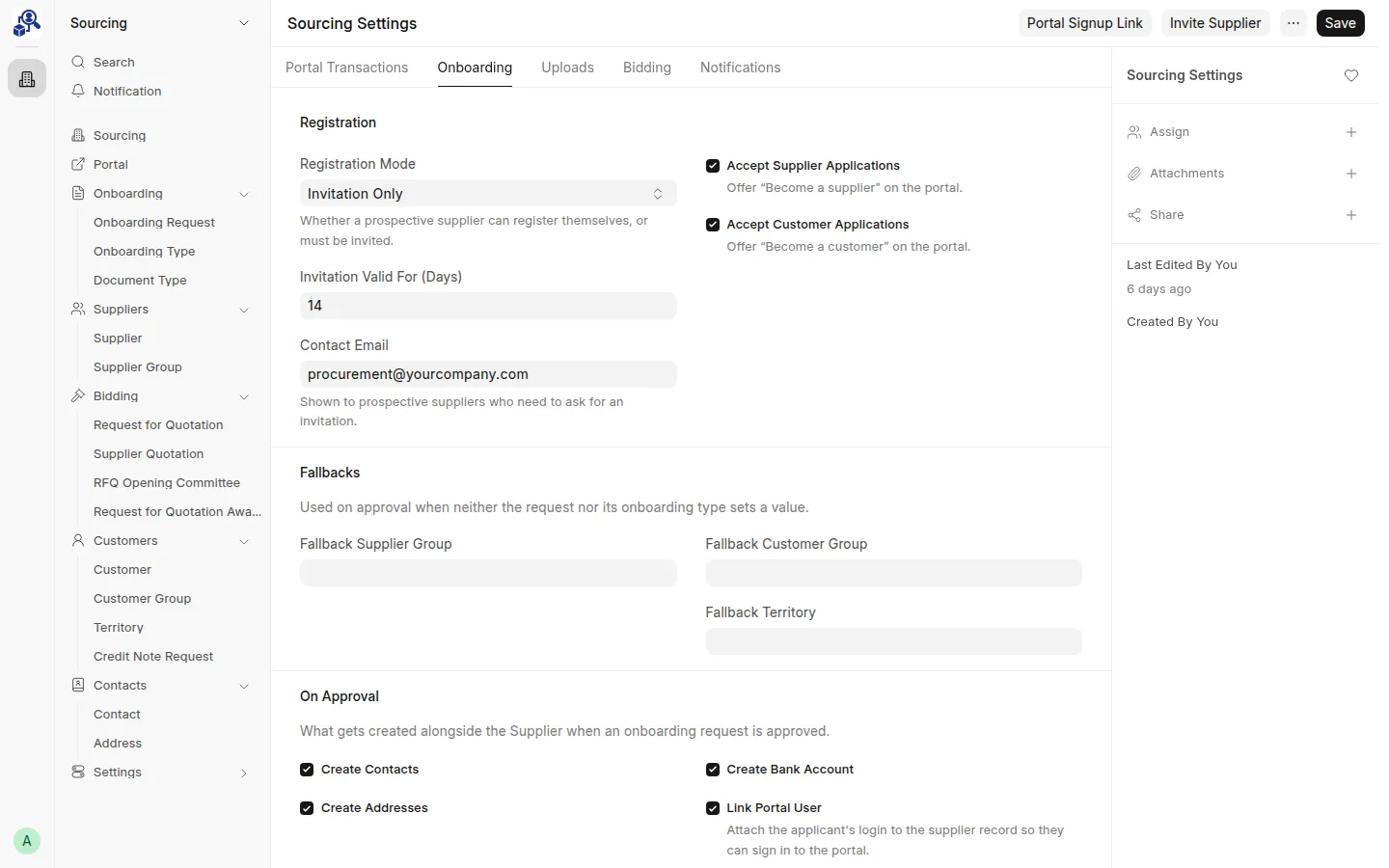
Registration
Registration Mode - Invitation Only: only people you invite can create an account. Open to Public: anyone can sign up from the portal.
Invitation Valid For (Days) -Shown only for Invitation Only. It is recorded but not enforced yet. The set-password link in an invitation email expires according to Frappe's own password settings.
Contact Email - Shown on the sign-up page so businesses know whom to ask for an invitation.
Accept Supplier Applications - Shows Become a supplier on the portal.
Accept Customer Applications - Shows Become a customer on the portal.
Fallbacks
Used on approval when neither the application nor its onboarding type sets a value:
- Fallback Supplier Group
- Fallback Customer Group
- Fallback Territory
Bidding
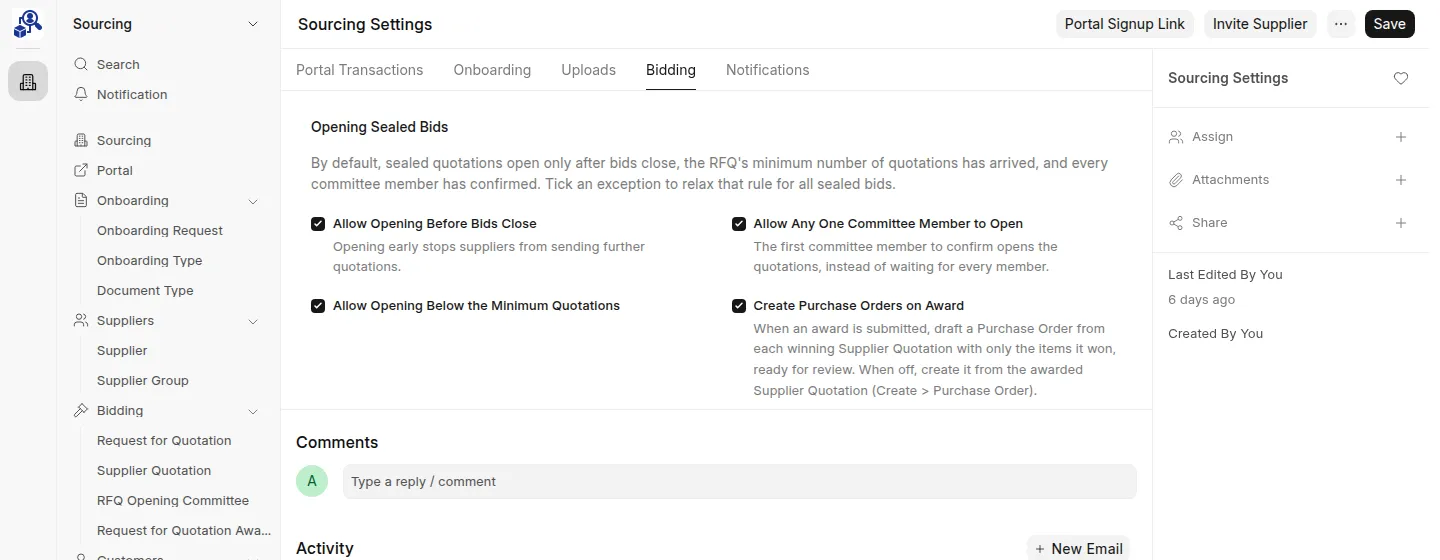
By default, sealed quotations open only when all of these are true: bids have closed, the RFQ's minimum number of quotations has arrived, and every committee member has confirmed. Tick an exception to relax that rule for all sealed bids:
| Field | What it does |
|---|---|
| Allow Opening Before Bids Close | The committee may open quotations early. Opening early stops suppliers from submitting further quotations. |
| Allow Opening Below the Minimum Quotations | The committee may open quotations even if fewer quotations than expected have been received. |
| Allow Any One Committee Member to Open | The first committee member to confirm opens the quotations, without waiting for every member. |
| Create Purchase Orders on Award | When an award is submitted, a draft Purchase Order is created for each winning Supplier Quotation, containing only the items that supplier won. When disabled, use Create → Purchase Order from the awarded Supplier Quotation. |
Portal Transactions
Use this corrected Markdown directly in your Frappe Wiki. I've removed the escape characters (\) that prevent the table from rendering properly.
| Field | Default | What it does |
|---|---|---|
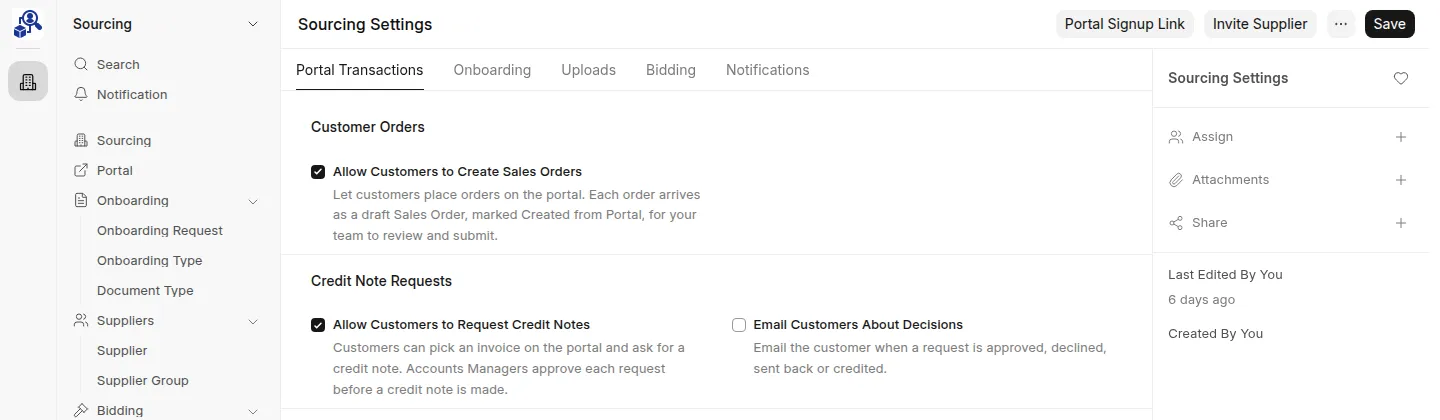
| Allow Customers to Create Sales Orders | Off | Customers can place orders through the portal. Each order arrives as a draft Sales Order for your team to confirm. |
| Allow Customers to Request Credit Notes | Off | Customers can select an invoice and request a credit note. |
| Email Customers About Decisions | On | Emails the customer when a credit request is approved, rejected, returned, or credited. |
Notifications
| Field | Default | What it does |
|---|---|---|
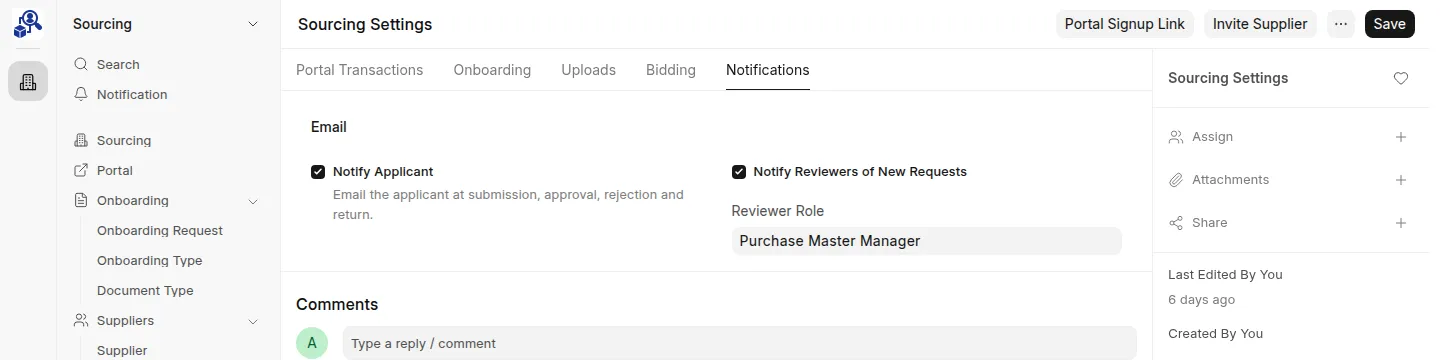
| Notify Applicant | On | Emails the applicant when the application is submitted, approved, rejected, or returned. |
| Notify Reviewers of New Requests | On | Emails reviewers when a new application arrives. |
| Reviewer Role | Purchase Master Manager | The role that receives those emails. |