
%20--%3E%3Cmetadata%20xmlns%3Ardf%3D%22http%3A%2F%2Fwww.w3.org%2F1999%2F02%2F22-rdf-syntax-ns%23%22%20xmlns%3Axsi%3D%22http%3A%2F%2Fwww.w3.org%2F2001%2FXMLSchema-instance%22%20xmlns%3Adc%3D%22http%3A%2F%2Fpurl.org%2Fdc%2Felements%2F1.1%2F%22%20xmlns%3Adcterms%3D%22http%3A%2F%2Fpurl.org%2Fdc%2Fterms%2F%22%3E%3Crdf%3ARDF%3E%3Crdf%3ADescription%3E%3Cdc%3Atitle%3ELoops%3C%2Fdc%3Atitle%3E%3Cdc%3Acreator%3EDiceBear%3C%2Fdc%3Acreator%3E%3Cdc%3Asource%20xsi%3Atype%3D%22dcterms%3AURI%22%3Ehttps%3A%2F%2Fwww.dicebear.com%3C%2Fdc%3Asource%3E%3Cdcterms%3Alicense%20xsi%3Atype%3D%22dcterms%3AURI%22%3Ehttps%3A%2F%2Fcreativecommons.org%2Fpublicdomain%2Fzero%2F1.0%2F%3C%2Fdcterms%3Alicense%3E%3Cdc%3Arights%3E%E2%80%9CLoops%E2%80%9D%20(https%3A%2F%2Fwww.dicebear.com)%20by%20%E2%80%9CDiceBear%E2%80%9D%2C%20licensed%20under%20%E2%80%9CCC0%201.0%E2%80%9D%20(https%3A%2F%2Fcreativecommons.org%2Fpublicdomain%2Fzero%2F1.0%2F)%3C%2Fdc%3Arights%3E%3C%2Frdf%3ADescription%3E%3C%2Frdf%3ARDF%3E%3C%2Fmetadata%3E%3Cdefs%3E%3Cg%20id%3D%22tile-default-bd85266d%22%3E%3Cpath%20d%3D%22M0%2014A14%2014%200%200%201%2014%200m0%2028a14%2014%200%200%200%2014-14%22%20stroke-width%3D%228%22%20stroke%3D%22%23ffffff%22%2F%3E%3C%2Fg%3E%3Cg%20id%3D%22pattern-default-bd85266d%22%3E%3Cg%20style%3D%22mix-blend-mode%3Aoverlay%22%3E%3Cg%20class%3D%22dblo-g1%22%3E%3Cuse%20transform%3D%22translate(4%204)%22%20href%3D%22%23tile-default-bd85266d%22%2F%3E%3C%2Fg%3E%3Cg%20class%3D%22dblo-g2%22%3E%3Cuse%20transform%3D%22translate(32%204)%22%20href%3D%22%23tile-default-bd85266d%22%2F%3E%3C%2Fg%3E%3Cg%20class%3D%22dblo-g3%22%3E%3Cuse%20transform%3D%22translate(60%204)%22%20href%3D%22%23tile-default-bd85266d%22%2F%3E%3C%2Fg%3E%3Cg%20class%3D%22dblo-g1%22%3E%3Cuse%20transform%3D%22translate(4%2032)%20rotate(90%2C%2014%2C%2014)%22%20href%3D%22%23tile-default-bd85266d%22%2F%3E%3C%2Fg%3E%3Cg%20class%3D%22dblo-g2%22%3E%3Cuse%20transform%3D%22translate(32%2032)%22%20href%3D%22%23tile-default-bd85266d%22%2F%3E%3C%2Fg%3E%3Cg%20class%3D%22dblo-g3%22%3E%3Cuse%20transform%3D%22translate(60%2032)%20rotate(90%2C%2014%2C%2014)%22%20href%3D%22%23tile-default-bd85266d%22%2F%3E%3C%2Fg%3E%3Cg%20class%3D%22dblo-g1%22%3E%3Cuse%20transform%3D%22translate(4%2060)%22%20href%3D%22%23tile-default-bd85266d%22%2F%3E%3C%2Fg%3E%3Cg%20class%3D%22dblo-g2%22%3E%3Cuse%20transform%3D%22translate(32%2060)%22%20href%3D%22%23tile-default-bd85266d%22%2F%3E%3C%2Fg%3E%3Cg%20class%3D%22dblo-g3%22%3E%3Cuse%20transform%3D%22translate(60%2060)%22%20href%3D%22%23tile-default-bd85266d%22%2F%3E%3C%2Fg%3E%3C%2Fg%3E%3Cg%20opacity%3D%22.5%22%3E%3Cg%20class%3D%22dblo-g1%22%3E%3Cuse%20transform%3D%22translate(4%204)%22%20href%3D%22%23tile-default-bd85266d%22%2F%3E%3C%2Fg%3E%3Cg%20class%3D%22dblo-g2%22%3E%3Cuse%20transform%3D%22translate(32%204)%22%20href%3D%22%23tile-default-bd85266d%22%2F%3E%3C%2Fg%3E%3Cg%20class%3D%22dblo-g3%22%3E%3Cuse%20transform%3D%22translate(60%204)%22%20href%3D%22%23tile-default-bd85266d%22%2F%3E%3C%2Fg%3E%3Cg%20class%3D%22dblo-g1%22%3E%3Cuse%20transform%3D%22translate(4%2032)%20rotate(90%2C%2014%2C%2014)%22%20href%3D%22%23tile-default-bd85266d%22%2F%3E%3C%2Fg%3E%3Cg%20class%3D%22dblo-g2%22%3E%3Cuse%20transform%3D%22translate(32%2032)%22%20href%3D%22%23tile-default-bd85266d%22%2F%3E%3C%2Fg%3E%3Cg%20class%3D%22dblo-g3%22%3E%3Cuse%20transform%3D%22translate(60%2032)%20rotate(90%2C%2014%2C%2014)%22%20href%3D%22%23tile-default-bd85266d%22%2F%3E%3C%2Fg%3E%3Cg%20class%3D%22dblo-g1%22%3E%3Cuse%20transform%3D%22translate(4%2060)%22%20href%3D%22%23tile-default-bd85266d%22%2F%3E%3C%2Fg%3E%3Cg%20class%3D%22dblo-g2%22%3E%3Cuse%20transform%3D%22translate(32%2060)%22%20href%3D%22%23tile-default-bd85266d%22%2F%3E%3C%2Fg%3E%3Cg%20class%3D%22dblo-g3%22%3E%3Cuse%20transform%3D%22translate(60%2060)%22%20href%3D%22%23tile-default-bd85266d%22%2F%3E%3C%2Fg%3E%3C%2Fg%3E%3C%2Fg%3E%3Cg%20id%3D%22animation-none-bd85266d%22%3E%3C%2Fg%3E%3CclipPath%20id%3D%22clip-bd85266d%22%3E%3Crect%20width%3D%22100%22%20height%3D%22100%22%20rx%3D%220%22%20ry%3D%220%22%2F%3E%3C%2FclipPath%3E%3C%2Fdefs%3E%3Cg%20clip-path%3D%22url(%23clip-bd85266d)%22%3E%3Crect%20width%3D%22100%22%20height%3D%22100%22%20fill%3D%22%23c2410c%22%2F%3E%3Cuse%20transform%3D%22translate(4%204)%22%20href%3D%22%23pattern-default-bd85266d%22%2F%3E%3Cuse%20href%3D%22%23animation-none-bd85266d%22%2F%3E%3C%2Fg%3E%3C%2Fsvg%3E)



%20--%3E%3Cmetadata%20xmlns%3Ardf%3D%22http%3A%2F%2Fwww.w3.org%2F1999%2F02%2F22-rdf-syntax-ns%23%22%20xmlns%3Axsi%3D%22http%3A%2F%2Fwww.w3.org%2F2001%2FXMLSchema-instance%22%20xmlns%3Adc%3D%22http%3A%2F%2Fpurl.org%2Fdc%2Felements%2F1.1%2F%22%20xmlns%3Adcterms%3D%22http%3A%2F%2Fpurl.org%2Fdc%2Fterms%2F%22%3E%3Crdf%3ARDF%3E%3Crdf%3ADescription%3E%3Cdc%3Atitle%3ELoops%3C%2Fdc%3Atitle%3E%3Cdc%3Acreator%3EDiceBear%3C%2Fdc%3Acreator%3E%3Cdc%3Asource%20xsi%3Atype%3D%22dcterms%3AURI%22%3Ehttps%3A%2F%2Fwww.dicebear.com%3C%2Fdc%3Asource%3E%3Cdcterms%3Alicense%20xsi%3Atype%3D%22dcterms%3AURI%22%3Ehttps%3A%2F%2Fcreativecommons.org%2Fpublicdomain%2Fzero%2F1.0%2F%3C%2Fdcterms%3Alicense%3E%3Cdc%3Arights%3E%E2%80%9CLoops%E2%80%9D%20(https%3A%2F%2Fwww.dicebear.com)%20by%20%E2%80%9CDiceBear%E2%80%9D%2C%20licensed%20under%20%E2%80%9CCC0%201.0%E2%80%9D%20(https%3A%2F%2Fcreativecommons.org%2Fpublicdomain%2Fzero%2F1.0%2F)%3C%2Fdc%3Arights%3E%3C%2Frdf%3ADescription%3E%3C%2Frdf%3ARDF%3E%3C%2Fmetadata%3E%3Cdefs%3E%3Cg%20id%3D%22tile-default-c50917e1%22%3E%3Cpath%20d%3D%22M0%2014A14%2014%200%200%201%2014%200m0%2028a14%2014%200%200%200%2014-14%22%20stroke-width%3D%228%22%20stroke%3D%22%23ffffff%22%2F%3E%3C%2Fg%3E%3Cg%20id%3D%22pattern-default-c50917e1%22%3E%3Cg%20style%3D%22mix-blend-mode%3Aoverlay%22%3E%3Cg%20class%3D%22dblo-g1%22%3E%3Cuse%20transform%3D%22translate(4%204)%20rotate(90%2C%2014%2C%2014)%22%20href%3D%22%23tile-default-c50917e1%22%2F%3E%3C%2Fg%3E%3Cg%20class%3D%22dblo-g2%22%3E%3Cuse%20transform%3D%22translate(32%204)%22%20href%3D%22%23tile-default-c50917e1%22%2F%3E%3C%2Fg%3E%3Cg%20class%3D%22dblo-g3%22%3E%3Cuse%20transform%3D%22translate(60%204)%20rotate(90%2C%2014%2C%2014)%22%20href%3D%22%23tile-default-c50917e1%22%2F%3E%3C%2Fg%3E%3Cg%20class%3D%22dblo-g1%22%3E%3Cuse%20transform%3D%22translate(4%2032)%20rotate(90%2C%2014%2C%2014)%22%20href%3D%22%23tile-default-c50917e1%22%2F%3E%3C%2Fg%3E%3Cg%20class%3D%22dblo-g2%22%3E%3Cuse%20transform%3D%22translate(32%2032)%22%20href%3D%22%23tile-default-c50917e1%22%2F%3E%3C%2Fg%3E%3Cg%20class%3D%22dblo-g3%22%3E%3Cuse%20transform%3D%22translate(60%2032)%20rotate(90%2C%2014%2C%2014)%22%20href%3D%22%23tile-default-c50917e1%22%2F%3E%3C%2Fg%3E%3Cg%20class%3D%22dblo-g1%22%3E%3Cuse%20transform%3D%22translate(4%2060)%22%20href%3D%22%23tile-default-c50917e1%22%2F%3E%3C%2Fg%3E%3Cg%20class%3D%22dblo-g2%22%3E%3Cuse%20transform%3D%22translate(32%2060)%22%20href%3D%22%23tile-default-c50917e1%22%2F%3E%3C%2Fg%3E%3Cg%20class%3D%22dblo-g3%22%3E%3Cuse%20transform%3D%22translate(60%2060)%20rotate(90%2C%2014%2C%2014)%22%20href%3D%22%23tile-default-c50917e1%22%2F%3E%3C%2Fg%3E%3C%2Fg%3E%3Cg%20opacity%3D%22.5%22%3E%3Cg%20class%3D%22dblo-g1%22%3E%3Cuse%20transform%3D%22translate(4%204)%20rotate(90%2C%2014%2C%2014)%22%20href%3D%22%23tile-default-c50917e1%22%2F%3E%3C%2Fg%3E%3Cg%20class%3D%22dblo-g2%22%3E%3Cuse%20transform%3D%22translate(32%204)%22%20href%3D%22%23tile-default-c50917e1%22%2F%3E%3C%2Fg%3E%3Cg%20class%3D%22dblo-g3%22%3E%3Cuse%20transform%3D%22translate(60%204)%20rotate(90%2C%2014%2C%2014)%22%20href%3D%22%23tile-default-c50917e1%22%2F%3E%3C%2Fg%3E%3Cg%20class%3D%22dblo-g1%22%3E%3Cuse%20transform%3D%22translate(4%2032)%20rotate(90%2C%2014%2C%2014)%22%20href%3D%22%23tile-default-c50917e1%22%2F%3E%3C%2Fg%3E%3Cg%20class%3D%22dblo-g2%22%3E%3Cuse%20transform%3D%22translate(32%2032)%22%20href%3D%22%23tile-default-c50917e1%22%2F%3E%3C%2Fg%3E%3Cg%20class%3D%22dblo-g3%22%3E%3Cuse%20transform%3D%22translate(60%2032)%20rotate(90%2C%2014%2C%2014)%22%20href%3D%22%23tile-default-c50917e1%22%2F%3E%3C%2Fg%3E%3Cg%20class%3D%22dblo-g1%22%3E%3Cuse%20transform%3D%22translate(4%2060)%22%20href%3D%22%23tile-default-c50917e1%22%2F%3E%3C%2Fg%3E%3Cg%20class%3D%22dblo-g2%22%3E%3Cuse%20transform%3D%22translate(32%2060)%22%20href%3D%22%23tile-default-c50917e1%22%2F%3E%3C%2Fg%3E%3Cg%20class%3D%22dblo-g3%22%3E%3Cuse%20transform%3D%22translate(60%2060)%20rotate(90%2C%2014%2C%2014)%22%20href%3D%22%23tile-default-c50917e1%22%2F%3E%3C%2Fg%3E%3C%2Fg%3E%3C%2Fg%3E%3Cg%20id%3D%22animation-none-c50917e1%22%3E%3C%2Fg%3E%3CclipPath%20id%3D%22clip-c50917e1%22%3E%3Crect%20width%3D%22100%22%20height%3D%22100%22%20rx%3D%220%22%20ry%3D%220%22%2F%3E%3C%2FclipPath%3E%3C%2Fdefs%3E%3Cg%20clip-path%3D%22url(%23clip-c50917e1)%22%3E%3Crect%20width%3D%22100%22%20height%3D%22100%22%20fill%3D%22%230f766e%22%2F%3E%3Cuse%20transform%3D%22translate(4%204)%22%20href%3D%22%23pattern-default-c50917e1%22%2F%3E%3Cuse%20href%3D%22%23animation-none-c50917e1%22%2F%3E%3C%2Fg%3E%3C%2Fsvg%3E)



3.2 Invitations and Signups
Before applying, a business needs a portal account. There are two ways to get one, depending on the Registration Mode in Sourcing Settings.
| Registration Mode | How accounts are created |
|---|---|
| Invitation Only (default) | Staff invite each business from Desk. Visitors to the sign-up page are asked to contact your team. |
| Open to Public | Anyone can create an account through the portal sign-up page. Sign-ups are rate-limited per IP address. |
Inviting a Supplier
- Open Sourcing Settings and click Invite Supplier.
- Enter the person's First Name, Last Name and Email.
- Click Send Invitation.
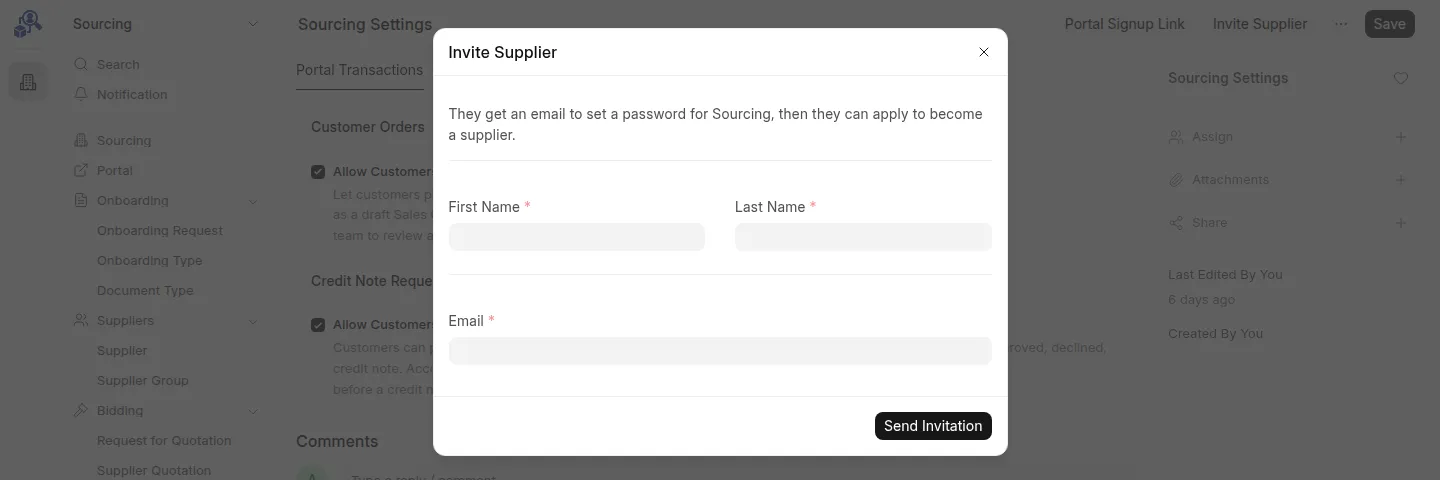
The person receives an email with a link to set their password. After signing in, they land on the portal and can start their application.
Sharing the Sign-up Link
Click Portal Signup Link in Sourcing Settings to copy the sign-up page address (/vuna-sourcing/signup). You can put it on your website or in an email.
- When registration is Open to Public, anyone with the link can create an account.
- When registration is Invitation Only, the page asks the visitor to request an invitation instead.
The Sign-up Page
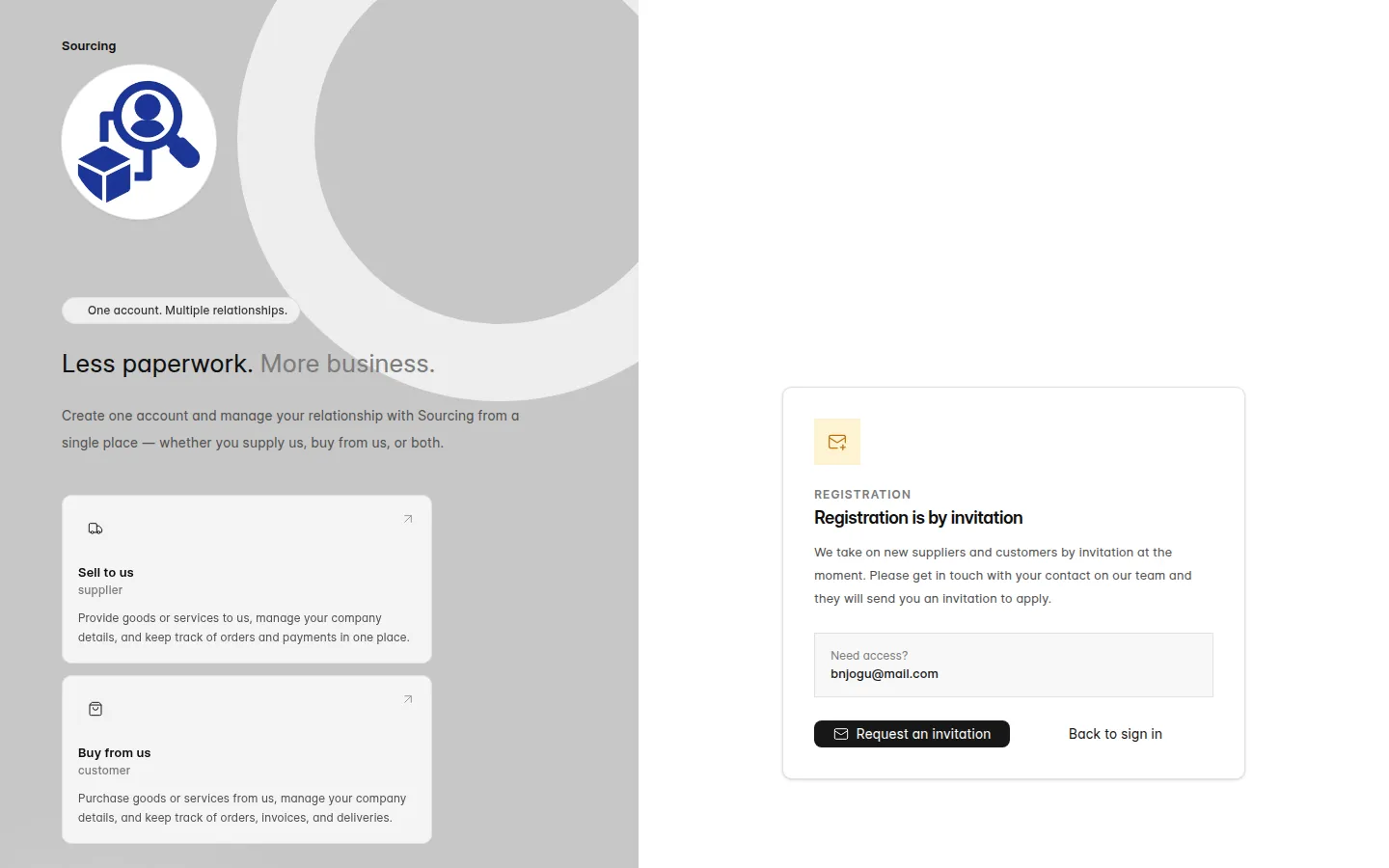
- Enter your first name, last name and work email, then click Continue.
- Open the email and set a password.
- Sign in. The portal opens on the Onboard page, where you start your application.
If an account already exists for that email, the page asks you to sign in or reset your password instead.
Last updated 2 hours ago
Was this helpful?