
%20--%3E%3Cmetadata%20xmlns%3Ardf%3D%22http%3A%2F%2Fwww.w3.org%2F1999%2F02%2F22-rdf-syntax-ns%23%22%20xmlns%3Axsi%3D%22http%3A%2F%2Fwww.w3.org%2F2001%2FXMLSchema-instance%22%20xmlns%3Adc%3D%22http%3A%2F%2Fpurl.org%2Fdc%2Felements%2F1.1%2F%22%20xmlns%3Adcterms%3D%22http%3A%2F%2Fpurl.org%2Fdc%2Fterms%2F%22%3E%3Crdf%3ARDF%3E%3Crdf%3ADescription%3E%3Cdc%3Atitle%3ELoops%3C%2Fdc%3Atitle%3E%3Cdc%3Acreator%3EDiceBear%3C%2Fdc%3Acreator%3E%3Cdc%3Asource%20xsi%3Atype%3D%22dcterms%3AURI%22%3Ehttps%3A%2F%2Fwww.dicebear.com%3C%2Fdc%3Asource%3E%3Cdcterms%3Alicense%20xsi%3Atype%3D%22dcterms%3AURI%22%3Ehttps%3A%2F%2Fcreativecommons.org%2Fpublicdomain%2Fzero%2F1.0%2F%3C%2Fdcterms%3Alicense%3E%3Cdc%3Arights%3E%E2%80%9CLoops%E2%80%9D%20(https%3A%2F%2Fwww.dicebear.com)%20by%20%E2%80%9CDiceBear%E2%80%9D%2C%20licensed%20under%20%E2%80%9CCC0%201.0%E2%80%9D%20(https%3A%2F%2Fcreativecommons.org%2Fpublicdomain%2Fzero%2F1.0%2F)%3C%2Fdc%3Arights%3E%3C%2Frdf%3ADescription%3E%3C%2Frdf%3ARDF%3E%3C%2Fmetadata%3E%3Cdefs%3E%3Cg%20id%3D%22tile-default-bd85266d%22%3E%3Cpath%20d%3D%22M0%2014A14%2014%200%200%201%2014%200m0%2028a14%2014%200%200%200%2014-14%22%20stroke-width%3D%228%22%20stroke%3D%22%23ffffff%22%2F%3E%3C%2Fg%3E%3Cg%20id%3D%22pattern-default-bd85266d%22%3E%3Cg%20style%3D%22mix-blend-mode%3Aoverlay%22%3E%3Cg%20class%3D%22dblo-g1%22%3E%3Cuse%20transform%3D%22translate(4%204)%22%20href%3D%22%23tile-default-bd85266d%22%2F%3E%3C%2Fg%3E%3Cg%20class%3D%22dblo-g2%22%3E%3Cuse%20transform%3D%22translate(32%204)%22%20href%3D%22%23tile-default-bd85266d%22%2F%3E%3C%2Fg%3E%3Cg%20class%3D%22dblo-g3%22%3E%3Cuse%20transform%3D%22translate(60%204)%22%20href%3D%22%23tile-default-bd85266d%22%2F%3E%3C%2Fg%3E%3Cg%20class%3D%22dblo-g1%22%3E%3Cuse%20transform%3D%22translate(4%2032)%20rotate(90%2C%2014%2C%2014)%22%20href%3D%22%23tile-default-bd85266d%22%2F%3E%3C%2Fg%3E%3Cg%20class%3D%22dblo-g2%22%3E%3Cuse%20transform%3D%22translate(32%2032)%22%20href%3D%22%23tile-default-bd85266d%22%2F%3E%3C%2Fg%3E%3Cg%20class%3D%22dblo-g3%22%3E%3Cuse%20transform%3D%22translate(60%2032)%20rotate(90%2C%2014%2C%2014)%22%20href%3D%22%23tile-default-bd85266d%22%2F%3E%3C%2Fg%3E%3Cg%20class%3D%22dblo-g1%22%3E%3Cuse%20transform%3D%22translate(4%2060)%22%20href%3D%22%23tile-default-bd85266d%22%2F%3E%3C%2Fg%3E%3Cg%20class%3D%22dblo-g2%22%3E%3Cuse%20transform%3D%22translate(32%2060)%22%20href%3D%22%23tile-default-bd85266d%22%2F%3E%3C%2Fg%3E%3Cg%20class%3D%22dblo-g3%22%3E%3Cuse%20transform%3D%22translate(60%2060)%22%20href%3D%22%23tile-default-bd85266d%22%2F%3E%3C%2Fg%3E%3C%2Fg%3E%3Cg%20opacity%3D%22.5%22%3E%3Cg%20class%3D%22dblo-g1%22%3E%3Cuse%20transform%3D%22translate(4%204)%22%20href%3D%22%23tile-default-bd85266d%22%2F%3E%3C%2Fg%3E%3Cg%20class%3D%22dblo-g2%22%3E%3Cuse%20transform%3D%22translate(32%204)%22%20href%3D%22%23tile-default-bd85266d%22%2F%3E%3C%2Fg%3E%3Cg%20class%3D%22dblo-g3%22%3E%3Cuse%20transform%3D%22translate(60%204)%22%20href%3D%22%23tile-default-bd85266d%22%2F%3E%3C%2Fg%3E%3Cg%20class%3D%22dblo-g1%22%3E%3Cuse%20transform%3D%22translate(4%2032)%20rotate(90%2C%2014%2C%2014)%22%20href%3D%22%23tile-default-bd85266d%22%2F%3E%3C%2Fg%3E%3Cg%20class%3D%22dblo-g2%22%3E%3Cuse%20transform%3D%22translate(32%2032)%22%20href%3D%22%23tile-default-bd85266d%22%2F%3E%3C%2Fg%3E%3Cg%20class%3D%22dblo-g3%22%3E%3Cuse%20transform%3D%22translate(60%2032)%20rotate(90%2C%2014%2C%2014)%22%20href%3D%22%23tile-default-bd85266d%22%2F%3E%3C%2Fg%3E%3Cg%20class%3D%22dblo-g1%22%3E%3Cuse%20transform%3D%22translate(4%2060)%22%20href%3D%22%23tile-default-bd85266d%22%2F%3E%3C%2Fg%3E%3Cg%20class%3D%22dblo-g2%22%3E%3Cuse%20transform%3D%22translate(32%2060)%22%20href%3D%22%23tile-default-bd85266d%22%2F%3E%3C%2Fg%3E%3Cg%20class%3D%22dblo-g3%22%3E%3Cuse%20transform%3D%22translate(60%2060)%22%20href%3D%22%23tile-default-bd85266d%22%2F%3E%3C%2Fg%3E%3C%2Fg%3E%3C%2Fg%3E%3Cg%20id%3D%22animation-none-bd85266d%22%3E%3C%2Fg%3E%3CclipPath%20id%3D%22clip-bd85266d%22%3E%3Crect%20width%3D%22100%22%20height%3D%22100%22%20rx%3D%220%22%20ry%3D%220%22%2F%3E%3C%2FclipPath%3E%3C%2Fdefs%3E%3Cg%20clip-path%3D%22url(%23clip-bd85266d)%22%3E%3Crect%20width%3D%22100%22%20height%3D%22100%22%20fill%3D%22%23c2410c%22%2F%3E%3Cuse%20transform%3D%22translate(4%204)%22%20href%3D%22%23pattern-default-bd85266d%22%2F%3E%3Cuse%20href%3D%22%23animation-none-bd85266d%22%2F%3E%3C%2Fg%3E%3C%2Fsvg%3E)



%20--%3E%3Cmetadata%20xmlns%3Ardf%3D%22http%3A%2F%2Fwww.w3.org%2F1999%2F02%2F22-rdf-syntax-ns%23%22%20xmlns%3Axsi%3D%22http%3A%2F%2Fwww.w3.org%2F2001%2FXMLSchema-instance%22%20xmlns%3Adc%3D%22http%3A%2F%2Fpurl.org%2Fdc%2Felements%2F1.1%2F%22%20xmlns%3Adcterms%3D%22http%3A%2F%2Fpurl.org%2Fdc%2Fterms%2F%22%3E%3Crdf%3ARDF%3E%3Crdf%3ADescription%3E%3Cdc%3Atitle%3ELoops%3C%2Fdc%3Atitle%3E%3Cdc%3Acreator%3EDiceBear%3C%2Fdc%3Acreator%3E%3Cdc%3Asource%20xsi%3Atype%3D%22dcterms%3AURI%22%3Ehttps%3A%2F%2Fwww.dicebear.com%3C%2Fdc%3Asource%3E%3Cdcterms%3Alicense%20xsi%3Atype%3D%22dcterms%3AURI%22%3Ehttps%3A%2F%2Fcreativecommons.org%2Fpublicdomain%2Fzero%2F1.0%2F%3C%2Fdcterms%3Alicense%3E%3Cdc%3Arights%3E%E2%80%9CLoops%E2%80%9D%20(https%3A%2F%2Fwww.dicebear.com)%20by%20%E2%80%9CDiceBear%E2%80%9D%2C%20licensed%20under%20%E2%80%9CCC0%201.0%E2%80%9D%20(https%3A%2F%2Fcreativecommons.org%2Fpublicdomain%2Fzero%2F1.0%2F)%3C%2Fdc%3Arights%3E%3C%2Frdf%3ADescription%3E%3C%2Frdf%3ARDF%3E%3C%2Fmetadata%3E%3Cdefs%3E%3Cg%20id%3D%22tile-default-c50917e1%22%3E%3Cpath%20d%3D%22M0%2014A14%2014%200%200%201%2014%200m0%2028a14%2014%200%200%200%2014-14%22%20stroke-width%3D%228%22%20stroke%3D%22%23ffffff%22%2F%3E%3C%2Fg%3E%3Cg%20id%3D%22pattern-default-c50917e1%22%3E%3Cg%20style%3D%22mix-blend-mode%3Aoverlay%22%3E%3Cg%20class%3D%22dblo-g1%22%3E%3Cuse%20transform%3D%22translate(4%204)%20rotate(90%2C%2014%2C%2014)%22%20href%3D%22%23tile-default-c50917e1%22%2F%3E%3C%2Fg%3E%3Cg%20class%3D%22dblo-g2%22%3E%3Cuse%20transform%3D%22translate(32%204)%22%20href%3D%22%23tile-default-c50917e1%22%2F%3E%3C%2Fg%3E%3Cg%20class%3D%22dblo-g3%22%3E%3Cuse%20transform%3D%22translate(60%204)%20rotate(90%2C%2014%2C%2014)%22%20href%3D%22%23tile-default-c50917e1%22%2F%3E%3C%2Fg%3E%3Cg%20class%3D%22dblo-g1%22%3E%3Cuse%20transform%3D%22translate(4%2032)%20rotate(90%2C%2014%2C%2014)%22%20href%3D%22%23tile-default-c50917e1%22%2F%3E%3C%2Fg%3E%3Cg%20class%3D%22dblo-g2%22%3E%3Cuse%20transform%3D%22translate(32%2032)%22%20href%3D%22%23tile-default-c50917e1%22%2F%3E%3C%2Fg%3E%3Cg%20class%3D%22dblo-g3%22%3E%3Cuse%20transform%3D%22translate(60%2032)%20rotate(90%2C%2014%2C%2014)%22%20href%3D%22%23tile-default-c50917e1%22%2F%3E%3C%2Fg%3E%3Cg%20class%3D%22dblo-g1%22%3E%3Cuse%20transform%3D%22translate(4%2060)%22%20href%3D%22%23tile-default-c50917e1%22%2F%3E%3C%2Fg%3E%3Cg%20class%3D%22dblo-g2%22%3E%3Cuse%20transform%3D%22translate(32%2060)%22%20href%3D%22%23tile-default-c50917e1%22%2F%3E%3C%2Fg%3E%3Cg%20class%3D%22dblo-g3%22%3E%3Cuse%20transform%3D%22translate(60%2060)%20rotate(90%2C%2014%2C%2014)%22%20href%3D%22%23tile-default-c50917e1%22%2F%3E%3C%2Fg%3E%3C%2Fg%3E%3Cg%20opacity%3D%22.5%22%3E%3Cg%20class%3D%22dblo-g1%22%3E%3Cuse%20transform%3D%22translate(4%204)%20rotate(90%2C%2014%2C%2014)%22%20href%3D%22%23tile-default-c50917e1%22%2F%3E%3C%2Fg%3E%3Cg%20class%3D%22dblo-g2%22%3E%3Cuse%20transform%3D%22translate(32%204)%22%20href%3D%22%23tile-default-c50917e1%22%2F%3E%3C%2Fg%3E%3Cg%20class%3D%22dblo-g3%22%3E%3Cuse%20transform%3D%22translate(60%204)%20rotate(90%2C%2014%2C%2014)%22%20href%3D%22%23tile-default-c50917e1%22%2F%3E%3C%2Fg%3E%3Cg%20class%3D%22dblo-g1%22%3E%3Cuse%20transform%3D%22translate(4%2032)%20rotate(90%2C%2014%2C%2014)%22%20href%3D%22%23tile-default-c50917e1%22%2F%3E%3C%2Fg%3E%3Cg%20class%3D%22dblo-g2%22%3E%3Cuse%20transform%3D%22translate(32%2032)%22%20href%3D%22%23tile-default-c50917e1%22%2F%3E%3C%2Fg%3E%3Cg%20class%3D%22dblo-g3%22%3E%3Cuse%20transform%3D%22translate(60%2032)%20rotate(90%2C%2014%2C%2014)%22%20href%3D%22%23tile-default-c50917e1%22%2F%3E%3C%2Fg%3E%3Cg%20class%3D%22dblo-g1%22%3E%3Cuse%20transform%3D%22translate(4%2060)%22%20href%3D%22%23tile-default-c50917e1%22%2F%3E%3C%2Fg%3E%3Cg%20class%3D%22dblo-g2%22%3E%3Cuse%20transform%3D%22translate(32%2060)%22%20href%3D%22%23tile-default-c50917e1%22%2F%3E%3C%2Fg%3E%3Cg%20class%3D%22dblo-g3%22%3E%3Cuse%20transform%3D%22translate(60%2060)%20rotate(90%2C%2014%2C%2014)%22%20href%3D%22%23tile-default-c50917e1%22%2F%3E%3C%2Fg%3E%3C%2Fg%3E%3C%2Fg%3E%3Cg%20id%3D%22animation-none-c50917e1%22%3E%3C%2Fg%3E%3CclipPath%20id%3D%22clip-c50917e1%22%3E%3Crect%20width%3D%22100%22%20height%3D%22100%22%20rx%3D%220%22%20ry%3D%220%22%2F%3E%3C%2FclipPath%3E%3C%2Fdefs%3E%3Cg%20clip-path%3D%22url(%23clip-c50917e1)%22%3E%3Crect%20width%3D%22100%22%20height%3D%22100%22%20fill%3D%22%230f766e%22%2F%3E%3Cuse%20transform%3D%22translate(4%204)%22%20href%3D%22%23pattern-default-c50917e1%22%2F%3E%3Cuse%20href%3D%22%23animation-none-c50917e1%22%2F%3E%3C%2Fg%3E%3C%2Fsvg%3E)



Customers can order from your item catalogue on the portal. Each order arrives in ERPNext as a draft Sales Order for your team to confirm.
Setting Up Customers to Order
| What | Where | Why |
|---|---|---|
| A price list | Default Price List on the Customer, its Customer Group, or Selling Settings | The portal retrieves prices for every order line from the selected price list. Without one, the customer sees We cannot price orders for your account yet. |
| Item prices | Item Price records for each item and unit customers may order | Items without a valid price cannot be ordered. Customer-specific Item Prices take precedence when available. |
| Companies | The Accounts table on the Customer, with one row per company | If multiple companies are configured, customers can order only from those listed. This configuration is unnecessary when only one company is used. |
| Delivery addresses | Customer addresses | Customers select one of their saved addresses as the delivery address for an order. |
Placing an Order (Customers)
- Open Sales Order → New order.
- Browse or search the catalogue. Filter by item group with the chips at the top, and switch between grid and list views.
- Click Add on each item and set the quantity with + and −. The cart on the right shows the lines and the total.
- Choose Deliver by, the date you need the order.
- Choose Deliver to, one of your addresses.
- Optionally enter Your reference, your own PO number.
- Click Send order.
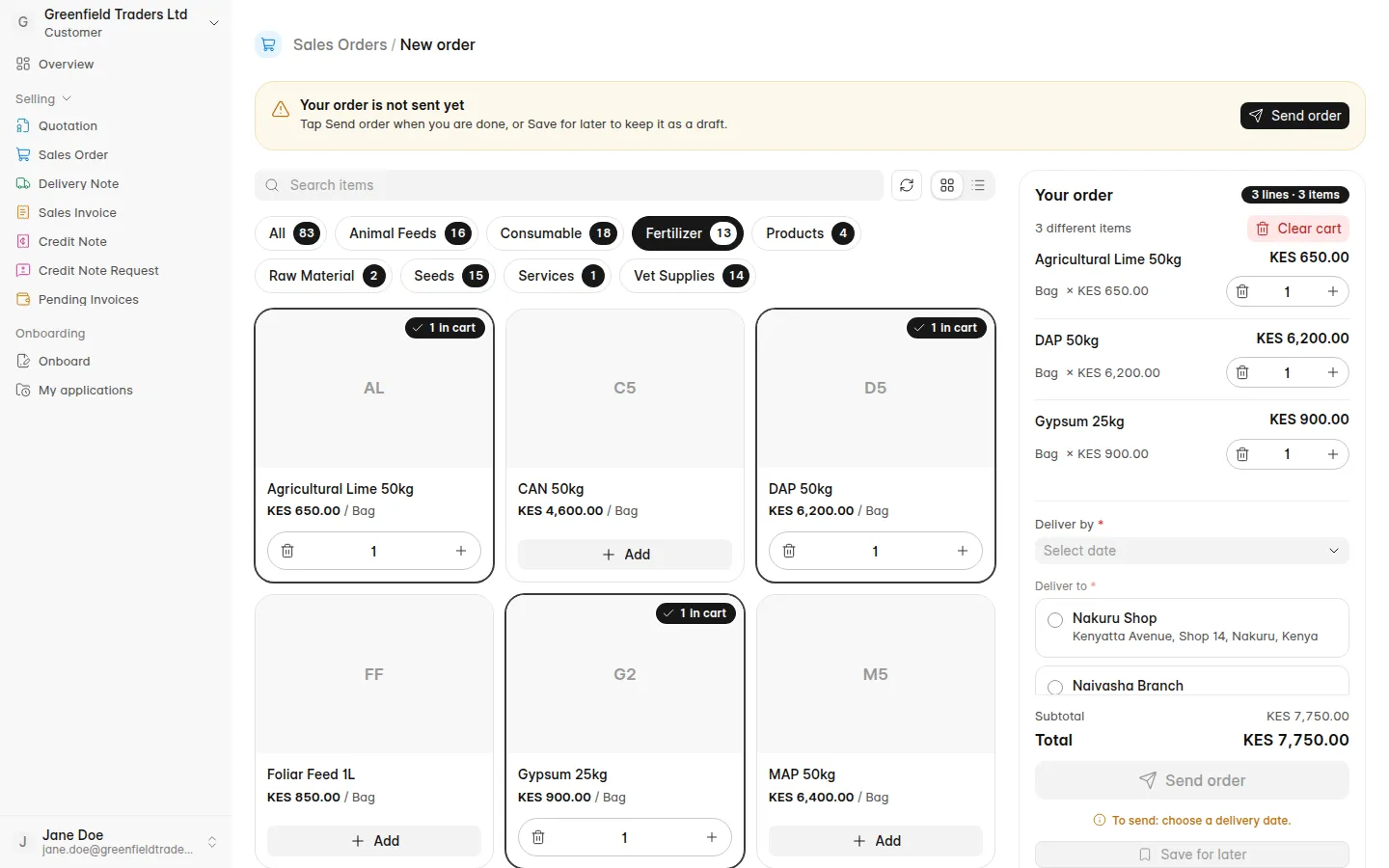
Save for later keeps the order as your own draft. Drafts aren't visible to staff until you send them.
Rules
- The delivery date can't be in the past.
- A PO number can be used only once per customer.
- An order can have at most 100 lines.
- Every item must be orderable and have a price in your price list.
After Sending
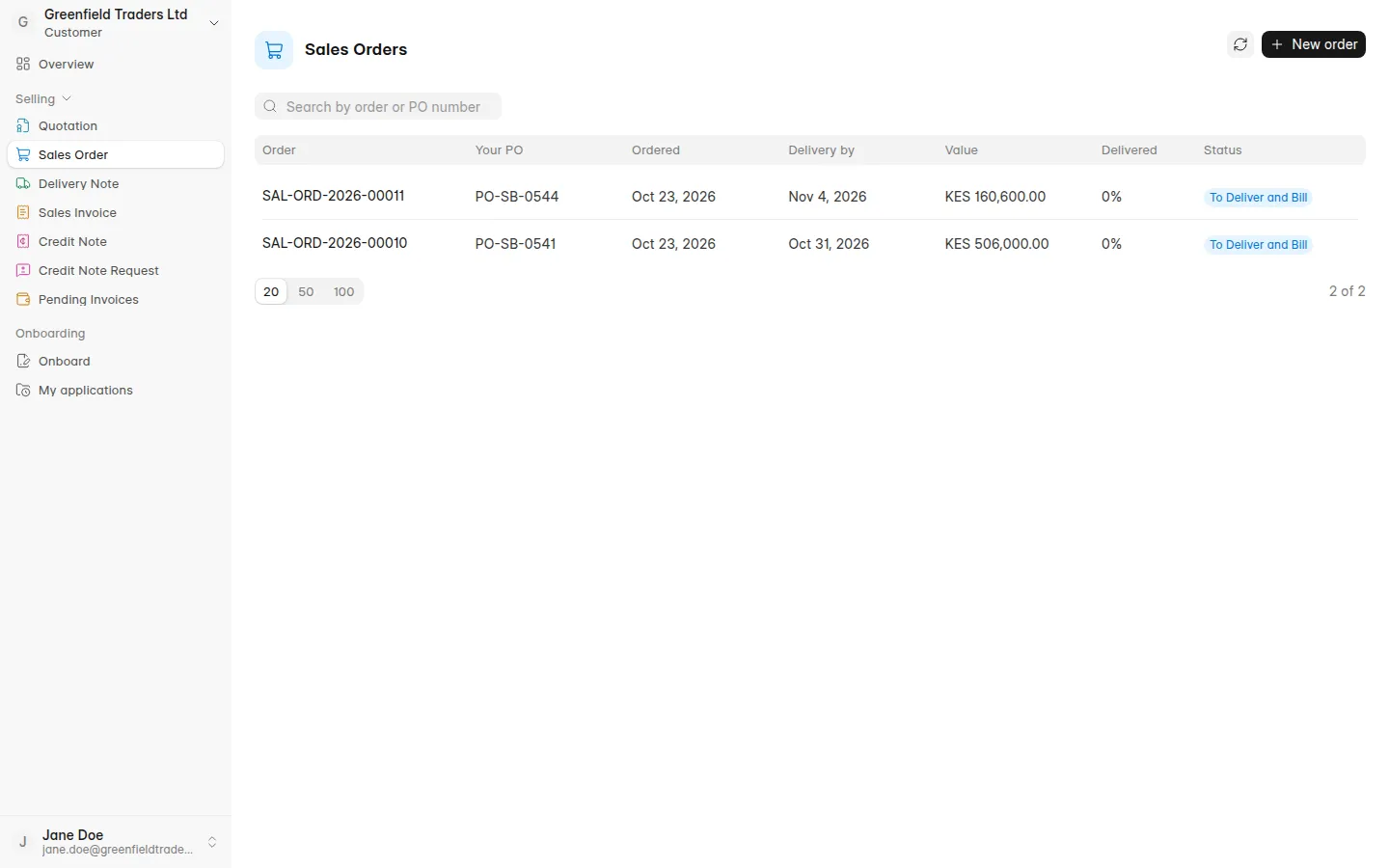
- The order appears under Sales Order with its status.
- Until staff confirm it, you can withdraw the order. It goes back to your drafts, where you can change it and send it again.
- Once staff confirm it, it can no longer be changed or withdrawn. Deliveries and invoices then appear under Delivery Note and Sales Invoice.
Last updated 1 hour ago
Was this helpful?