
%20--%3E%3Cmetadata%20xmlns%3Ardf%3D%22http%3A%2F%2Fwww.w3.org%2F1999%2F02%2F22-rdf-syntax-ns%23%22%20xmlns%3Axsi%3D%22http%3A%2F%2Fwww.w3.org%2F2001%2FXMLSchema-instance%22%20xmlns%3Adc%3D%22http%3A%2F%2Fpurl.org%2Fdc%2Felements%2F1.1%2F%22%20xmlns%3Adcterms%3D%22http%3A%2F%2Fpurl.org%2Fdc%2Fterms%2F%22%3E%3Crdf%3ARDF%3E%3Crdf%3ADescription%3E%3Cdc%3Atitle%3ELoops%3C%2Fdc%3Atitle%3E%3Cdc%3Acreator%3EDiceBear%3C%2Fdc%3Acreator%3E%3Cdc%3Asource%20xsi%3Atype%3D%22dcterms%3AURI%22%3Ehttps%3A%2F%2Fwww.dicebear.com%3C%2Fdc%3Asource%3E%3Cdcterms%3Alicense%20xsi%3Atype%3D%22dcterms%3AURI%22%3Ehttps%3A%2F%2Fcreativecommons.org%2Fpublicdomain%2Fzero%2F1.0%2F%3C%2Fdcterms%3Alicense%3E%3Cdc%3Arights%3E%E2%80%9CLoops%E2%80%9D%20(https%3A%2F%2Fwww.dicebear.com)%20by%20%E2%80%9CDiceBear%E2%80%9D%2C%20licensed%20under%20%E2%80%9CCC0%201.0%E2%80%9D%20(https%3A%2F%2Fcreativecommons.org%2Fpublicdomain%2Fzero%2F1.0%2F)%3C%2Fdc%3Arights%3E%3C%2Frdf%3ADescription%3E%3C%2Frdf%3ARDF%3E%3C%2Fmetadata%3E%3Cdefs%3E%3Cg%20id%3D%22tile-default-bd85266d%22%3E%3Cpath%20d%3D%22M0%2014A14%2014%200%200%201%2014%200m0%2028a14%2014%200%200%200%2014-14%22%20stroke-width%3D%228%22%20stroke%3D%22%23ffffff%22%2F%3E%3C%2Fg%3E%3Cg%20id%3D%22pattern-default-bd85266d%22%3E%3Cg%20style%3D%22mix-blend-mode%3Aoverlay%22%3E%3Cg%20class%3D%22dblo-g1%22%3E%3Cuse%20transform%3D%22translate(4%204)%22%20href%3D%22%23tile-default-bd85266d%22%2F%3E%3C%2Fg%3E%3Cg%20class%3D%22dblo-g2%22%3E%3Cuse%20transform%3D%22translate(32%204)%22%20href%3D%22%23tile-default-bd85266d%22%2F%3E%3C%2Fg%3E%3Cg%20class%3D%22dblo-g3%22%3E%3Cuse%20transform%3D%22translate(60%204)%22%20href%3D%22%23tile-default-bd85266d%22%2F%3E%3C%2Fg%3E%3Cg%20class%3D%22dblo-g1%22%3E%3Cuse%20transform%3D%22translate(4%2032)%20rotate(90%2C%2014%2C%2014)%22%20href%3D%22%23tile-default-bd85266d%22%2F%3E%3C%2Fg%3E%3Cg%20class%3D%22dblo-g2%22%3E%3Cuse%20transform%3D%22translate(32%2032)%22%20href%3D%22%23tile-default-bd85266d%22%2F%3E%3C%2Fg%3E%3Cg%20class%3D%22dblo-g3%22%3E%3Cuse%20transform%3D%22translate(60%2032)%20rotate(90%2C%2014%2C%2014)%22%20href%3D%22%23tile-default-bd85266d%22%2F%3E%3C%2Fg%3E%3Cg%20class%3D%22dblo-g1%22%3E%3Cuse%20transform%3D%22translate(4%2060)%22%20href%3D%22%23tile-default-bd85266d%22%2F%3E%3C%2Fg%3E%3Cg%20class%3D%22dblo-g2%22%3E%3Cuse%20transform%3D%22translate(32%2060)%22%20href%3D%22%23tile-default-bd85266d%22%2F%3E%3C%2Fg%3E%3Cg%20class%3D%22dblo-g3%22%3E%3Cuse%20transform%3D%22translate(60%2060)%22%20href%3D%22%23tile-default-bd85266d%22%2F%3E%3C%2Fg%3E%3C%2Fg%3E%3Cg%20opacity%3D%22.5%22%3E%3Cg%20class%3D%22dblo-g1%22%3E%3Cuse%20transform%3D%22translate(4%204)%22%20href%3D%22%23tile-default-bd85266d%22%2F%3E%3C%2Fg%3E%3Cg%20class%3D%22dblo-g2%22%3E%3Cuse%20transform%3D%22translate(32%204)%22%20href%3D%22%23tile-default-bd85266d%22%2F%3E%3C%2Fg%3E%3Cg%20class%3D%22dblo-g3%22%3E%3Cuse%20transform%3D%22translate(60%204)%22%20href%3D%22%23tile-default-bd85266d%22%2F%3E%3C%2Fg%3E%3Cg%20class%3D%22dblo-g1%22%3E%3Cuse%20transform%3D%22translate(4%2032)%20rotate(90%2C%2014%2C%2014)%22%20href%3D%22%23tile-default-bd85266d%22%2F%3E%3C%2Fg%3E%3Cg%20class%3D%22dblo-g2%22%3E%3Cuse%20transform%3D%22translate(32%2032)%22%20href%3D%22%23tile-default-bd85266d%22%2F%3E%3C%2Fg%3E%3Cg%20class%3D%22dblo-g3%22%3E%3Cuse%20transform%3D%22translate(60%2032)%20rotate(90%2C%2014%2C%2014)%22%20href%3D%22%23tile-default-bd85266d%22%2F%3E%3C%2Fg%3E%3Cg%20class%3D%22dblo-g1%22%3E%3Cuse%20transform%3D%22translate(4%2060)%22%20href%3D%22%23tile-default-bd85266d%22%2F%3E%3C%2Fg%3E%3Cg%20class%3D%22dblo-g2%22%3E%3Cuse%20transform%3D%22translate(32%2060)%22%20href%3D%22%23tile-default-bd85266d%22%2F%3E%3C%2Fg%3E%3Cg%20class%3D%22dblo-g3%22%3E%3Cuse%20transform%3D%22translate(60%2060)%22%20href%3D%22%23tile-default-bd85266d%22%2F%3E%3C%2Fg%3E%3C%2Fg%3E%3C%2Fg%3E%3Cg%20id%3D%22animation-none-bd85266d%22%3E%3C%2Fg%3E%3CclipPath%20id%3D%22clip-bd85266d%22%3E%3Crect%20width%3D%22100%22%20height%3D%22100%22%20rx%3D%220%22%20ry%3D%220%22%2F%3E%3C%2FclipPath%3E%3C%2Fdefs%3E%3Cg%20clip-path%3D%22url(%23clip-bd85266d)%22%3E%3Crect%20width%3D%22100%22%20height%3D%22100%22%20fill%3D%22%23c2410c%22%2F%3E%3Cuse%20transform%3D%22translate(4%204)%22%20href%3D%22%23pattern-default-bd85266d%22%2F%3E%3Cuse%20href%3D%22%23animation-none-bd85266d%22%2F%3E%3C%2Fg%3E%3C%2Fsvg%3E)



%20--%3E%3Cmetadata%20xmlns%3Ardf%3D%22http%3A%2F%2Fwww.w3.org%2F1999%2F02%2F22-rdf-syntax-ns%23%22%20xmlns%3Axsi%3D%22http%3A%2F%2Fwww.w3.org%2F2001%2FXMLSchema-instance%22%20xmlns%3Adc%3D%22http%3A%2F%2Fpurl.org%2Fdc%2Felements%2F1.1%2F%22%20xmlns%3Adcterms%3D%22http%3A%2F%2Fpurl.org%2Fdc%2Fterms%2F%22%3E%3Crdf%3ARDF%3E%3Crdf%3ADescription%3E%3Cdc%3Atitle%3ELoops%3C%2Fdc%3Atitle%3E%3Cdc%3Acreator%3EDiceBear%3C%2Fdc%3Acreator%3E%3Cdc%3Asource%20xsi%3Atype%3D%22dcterms%3AURI%22%3Ehttps%3A%2F%2Fwww.dicebear.com%3C%2Fdc%3Asource%3E%3Cdcterms%3Alicense%20xsi%3Atype%3D%22dcterms%3AURI%22%3Ehttps%3A%2F%2Fcreativecommons.org%2Fpublicdomain%2Fzero%2F1.0%2F%3C%2Fdcterms%3Alicense%3E%3Cdc%3Arights%3E%E2%80%9CLoops%E2%80%9D%20(https%3A%2F%2Fwww.dicebear.com)%20by%20%E2%80%9CDiceBear%E2%80%9D%2C%20licensed%20under%20%E2%80%9CCC0%201.0%E2%80%9D%20(https%3A%2F%2Fcreativecommons.org%2Fpublicdomain%2Fzero%2F1.0%2F)%3C%2Fdc%3Arights%3E%3C%2Frdf%3ADescription%3E%3C%2Frdf%3ARDF%3E%3C%2Fmetadata%3E%3Cdefs%3E%3Cg%20id%3D%22tile-default-c50917e1%22%3E%3Cpath%20d%3D%22M0%2014A14%2014%200%200%201%2014%200m0%2028a14%2014%200%200%200%2014-14%22%20stroke-width%3D%228%22%20stroke%3D%22%23ffffff%22%2F%3E%3C%2Fg%3E%3Cg%20id%3D%22pattern-default-c50917e1%22%3E%3Cg%20style%3D%22mix-blend-mode%3Aoverlay%22%3E%3Cg%20class%3D%22dblo-g1%22%3E%3Cuse%20transform%3D%22translate(4%204)%20rotate(90%2C%2014%2C%2014)%22%20href%3D%22%23tile-default-c50917e1%22%2F%3E%3C%2Fg%3E%3Cg%20class%3D%22dblo-g2%22%3E%3Cuse%20transform%3D%22translate(32%204)%22%20href%3D%22%23tile-default-c50917e1%22%2F%3E%3C%2Fg%3E%3Cg%20class%3D%22dblo-g3%22%3E%3Cuse%20transform%3D%22translate(60%204)%20rotate(90%2C%2014%2C%2014)%22%20href%3D%22%23tile-default-c50917e1%22%2F%3E%3C%2Fg%3E%3Cg%20class%3D%22dblo-g1%22%3E%3Cuse%20transform%3D%22translate(4%2032)%20rotate(90%2C%2014%2C%2014)%22%20href%3D%22%23tile-default-c50917e1%22%2F%3E%3C%2Fg%3E%3Cg%20class%3D%22dblo-g2%22%3E%3Cuse%20transform%3D%22translate(32%2032)%22%20href%3D%22%23tile-default-c50917e1%22%2F%3E%3C%2Fg%3E%3Cg%20class%3D%22dblo-g3%22%3E%3Cuse%20transform%3D%22translate(60%2032)%20rotate(90%2C%2014%2C%2014)%22%20href%3D%22%23tile-default-c50917e1%22%2F%3E%3C%2Fg%3E%3Cg%20class%3D%22dblo-g1%22%3E%3Cuse%20transform%3D%22translate(4%2060)%22%20href%3D%22%23tile-default-c50917e1%22%2F%3E%3C%2Fg%3E%3Cg%20class%3D%22dblo-g2%22%3E%3Cuse%20transform%3D%22translate(32%2060)%22%20href%3D%22%23tile-default-c50917e1%22%2F%3E%3C%2Fg%3E%3Cg%20class%3D%22dblo-g3%22%3E%3Cuse%20transform%3D%22translate(60%2060)%20rotate(90%2C%2014%2C%2014)%22%20href%3D%22%23tile-default-c50917e1%22%2F%3E%3C%2Fg%3E%3C%2Fg%3E%3Cg%20opacity%3D%22.5%22%3E%3Cg%20class%3D%22dblo-g1%22%3E%3Cuse%20transform%3D%22translate(4%204)%20rotate(90%2C%2014%2C%2014)%22%20href%3D%22%23tile-default-c50917e1%22%2F%3E%3C%2Fg%3E%3Cg%20class%3D%22dblo-g2%22%3E%3Cuse%20transform%3D%22translate(32%204)%22%20href%3D%22%23tile-default-c50917e1%22%2F%3E%3C%2Fg%3E%3Cg%20class%3D%22dblo-g3%22%3E%3Cuse%20transform%3D%22translate(60%204)%20rotate(90%2C%2014%2C%2014)%22%20href%3D%22%23tile-default-c50917e1%22%2F%3E%3C%2Fg%3E%3Cg%20class%3D%22dblo-g1%22%3E%3Cuse%20transform%3D%22translate(4%2032)%20rotate(90%2C%2014%2C%2014)%22%20href%3D%22%23tile-default-c50917e1%22%2F%3E%3C%2Fg%3E%3Cg%20class%3D%22dblo-g2%22%3E%3Cuse%20transform%3D%22translate(32%2032)%22%20href%3D%22%23tile-default-c50917e1%22%2F%3E%3C%2Fg%3E%3Cg%20class%3D%22dblo-g3%22%3E%3Cuse%20transform%3D%22translate(60%2032)%20rotate(90%2C%2014%2C%2014)%22%20href%3D%22%23tile-default-c50917e1%22%2F%3E%3C%2Fg%3E%3Cg%20class%3D%22dblo-g1%22%3E%3Cuse%20transform%3D%22translate(4%2060)%22%20href%3D%22%23tile-default-c50917e1%22%2F%3E%3C%2Fg%3E%3Cg%20class%3D%22dblo-g2%22%3E%3Cuse%20transform%3D%22translate(32%2060)%22%20href%3D%22%23tile-default-c50917e1%22%2F%3E%3C%2Fg%3E%3Cg%20class%3D%22dblo-g3%22%3E%3Cuse%20transform%3D%22translate(60%2060)%20rotate(90%2C%2014%2C%2014)%22%20href%3D%22%23tile-default-c50917e1%22%2F%3E%3C%2Fg%3E%3C%2Fg%3E%3C%2Fg%3E%3Cg%20id%3D%22animation-none-c50917e1%22%3E%3C%2Fg%3E%3CclipPath%20id%3D%22clip-c50917e1%22%3E%3Crect%20width%3D%22100%22%20height%3D%22100%22%20rx%3D%220%22%20ry%3D%220%22%2F%3E%3C%2FclipPath%3E%3C%2Fdefs%3E%3Cg%20clip-path%3D%22url(%23clip-c50917e1)%22%3E%3Crect%20width%3D%22100%22%20height%3D%22100%22%20fill%3D%22%230f766e%22%2F%3E%3Cuse%20transform%3D%22translate(4%204)%22%20href%3D%22%23pattern-default-c50917e1%22%2F%3E%3Cuse%20href%3D%22%23animation-none-c50917e1%22%2F%3E%3C%2Fg%3E%3C%2Fsvg%3E)



4.3 Quoting on Portal
This page is for suppliers. Open Request for Quotation in the portal menu to see every request sent to you.
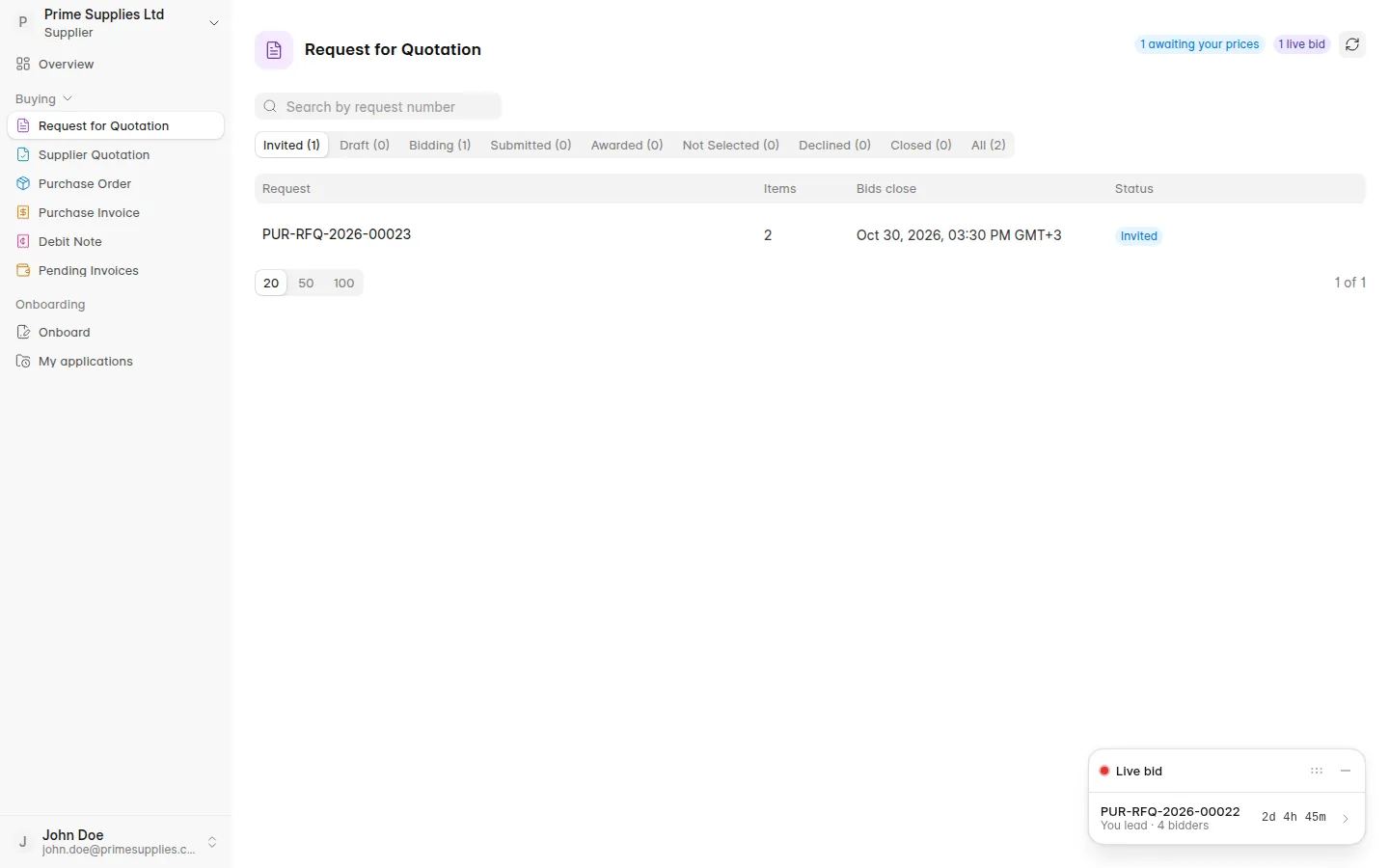
The tabs group requests by where they stand:
| Tab | Shows |
|---|---|
| Invited | New requests awaiting your quotation. |
| Draft | Requests for which you have saved a draft quotation but haven't submitted it. |
| Bidding | Open bids you are participating in. |
| Submitted | Quotations you have submitted to buyers. |
| Awarded / Not Selected | The outcome after the buyer makes an award decision. |
| Declined | Requests you have chosen not to submit a quotation for. |
| Closed | Requests whose submission deadline has passed. |
Sending a Quotation
- Open a request from the Invited tab.
- Enter Your price and Lead time (in days) for every item. The amount and total update as you type.
- Optionally enter Your quotation number, your own reference.
- Choose Prices valid until.
- Click Send quotation for a sealed bid, or Place bid for an open bid.
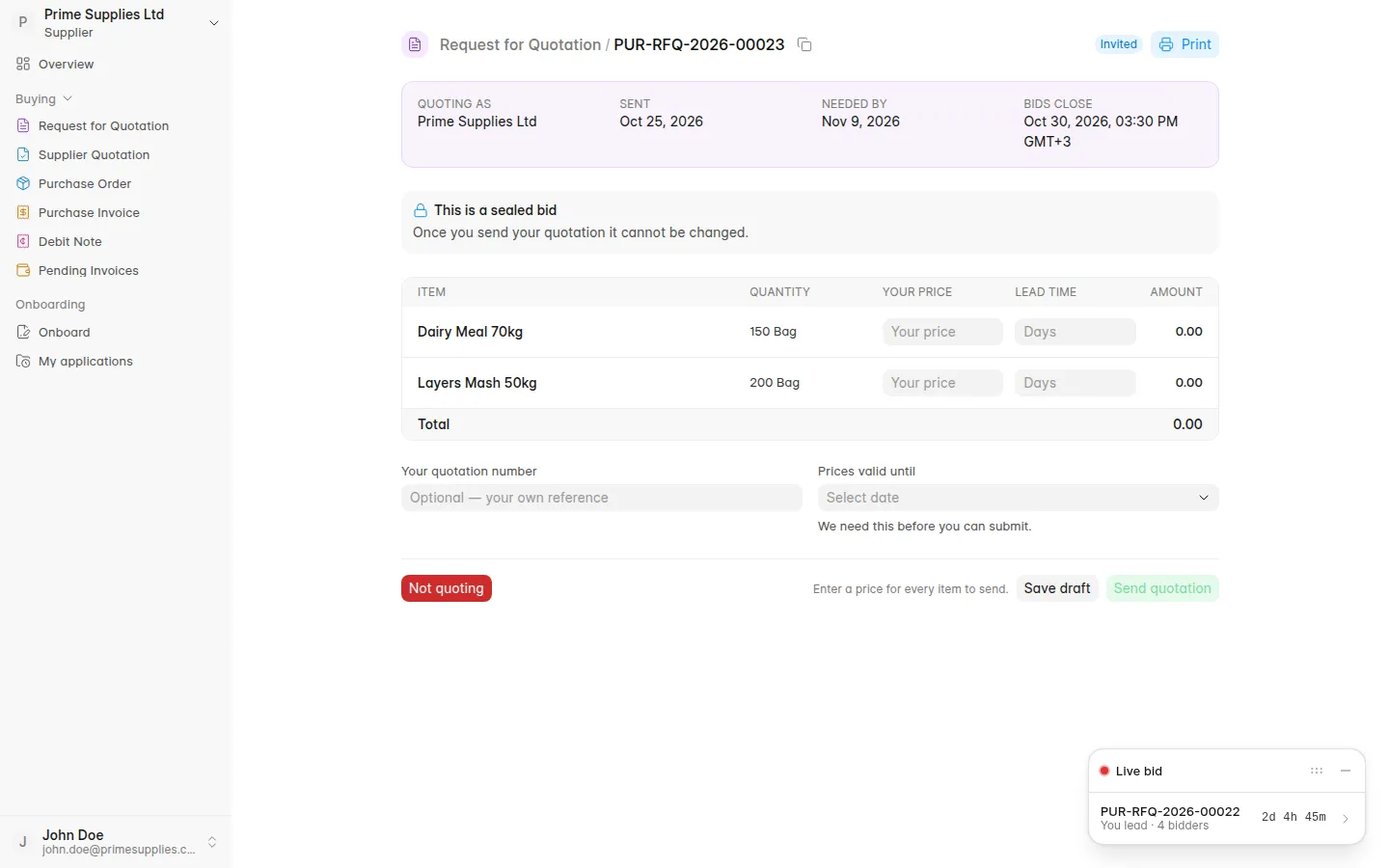
- Save draft keeps your prices without sending them. The request moves to the Draft tab.
- Not quoting declines the request. You are asked for a short reason.
- Print gives you a printable copy of the request.
For an open bid, your first bid opens the bid room, where you can lower your price as often as you like until bidding closes. See Open Bids.
After You Send
- Your quotation appears under Supplier Quotation with its status.
- When the buyer awards the request, you are emailed and the request moves to Awarded or Not Selected.
- Purchase orders for the items you won appear under Purchase Order.
Last updated 2 hours ago
Was this helpful?