




Meters and billing
Warranty claims and meters
A meter is linked to a customer through a Warranty Claim. A reading can only be recorded for a meter that is on a Closed Warranty Claim of that customer.
Create a Warranty Claim
- Open a submitted Utility Service Request that has a submitted Sales Order, and choose Create > Warranty Claim. The customer, request, property and date fill in.
If the request already has a claim, you are asked whether to create another. A claim holds one meter, so a request with two meters needs two claims.
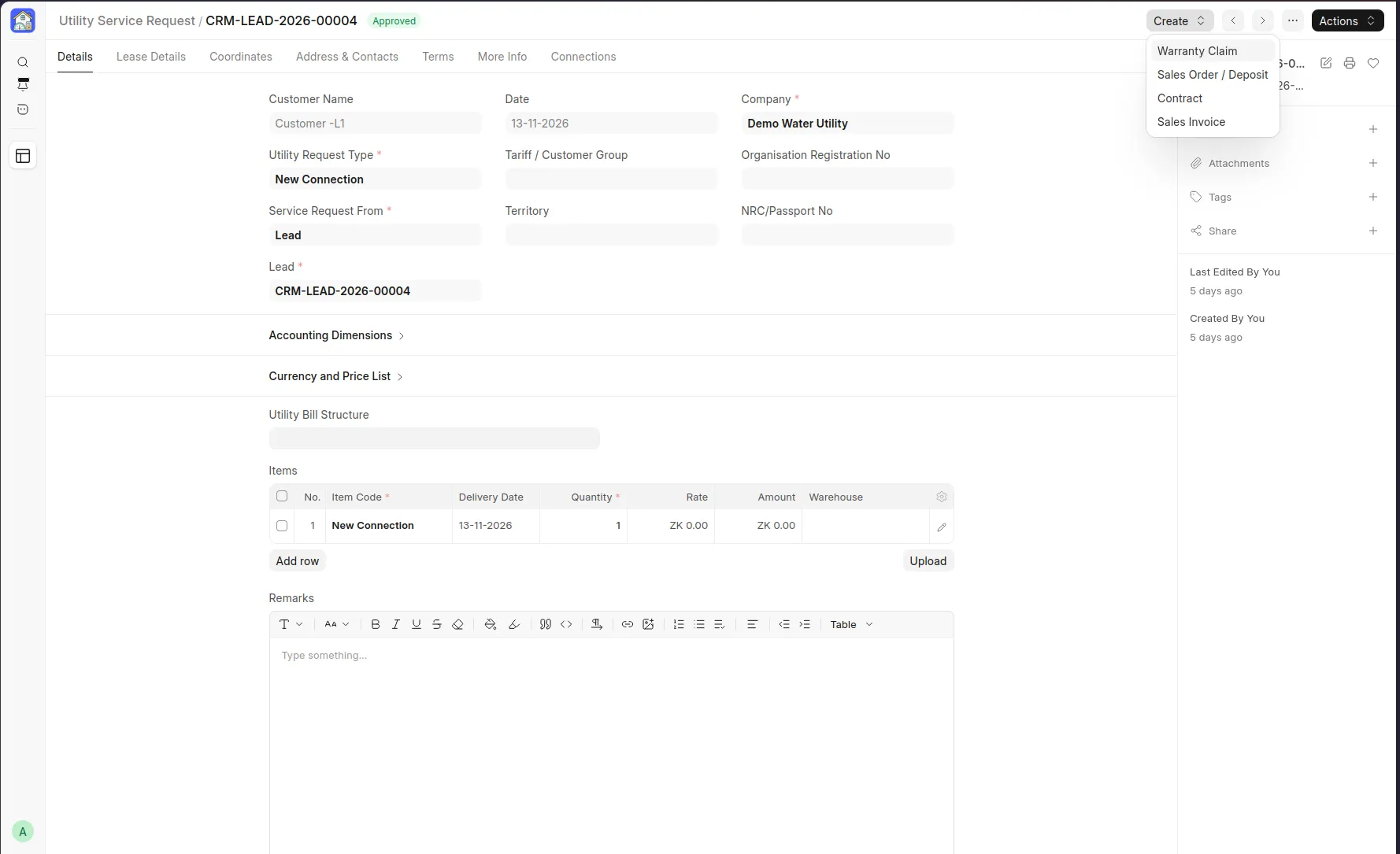
- Choose the Serial No of the meter. Only active serial numbers of the item that are not already on another Closed claim are offered.
- Save the claim. Set its status to Closed when the meter is installed.
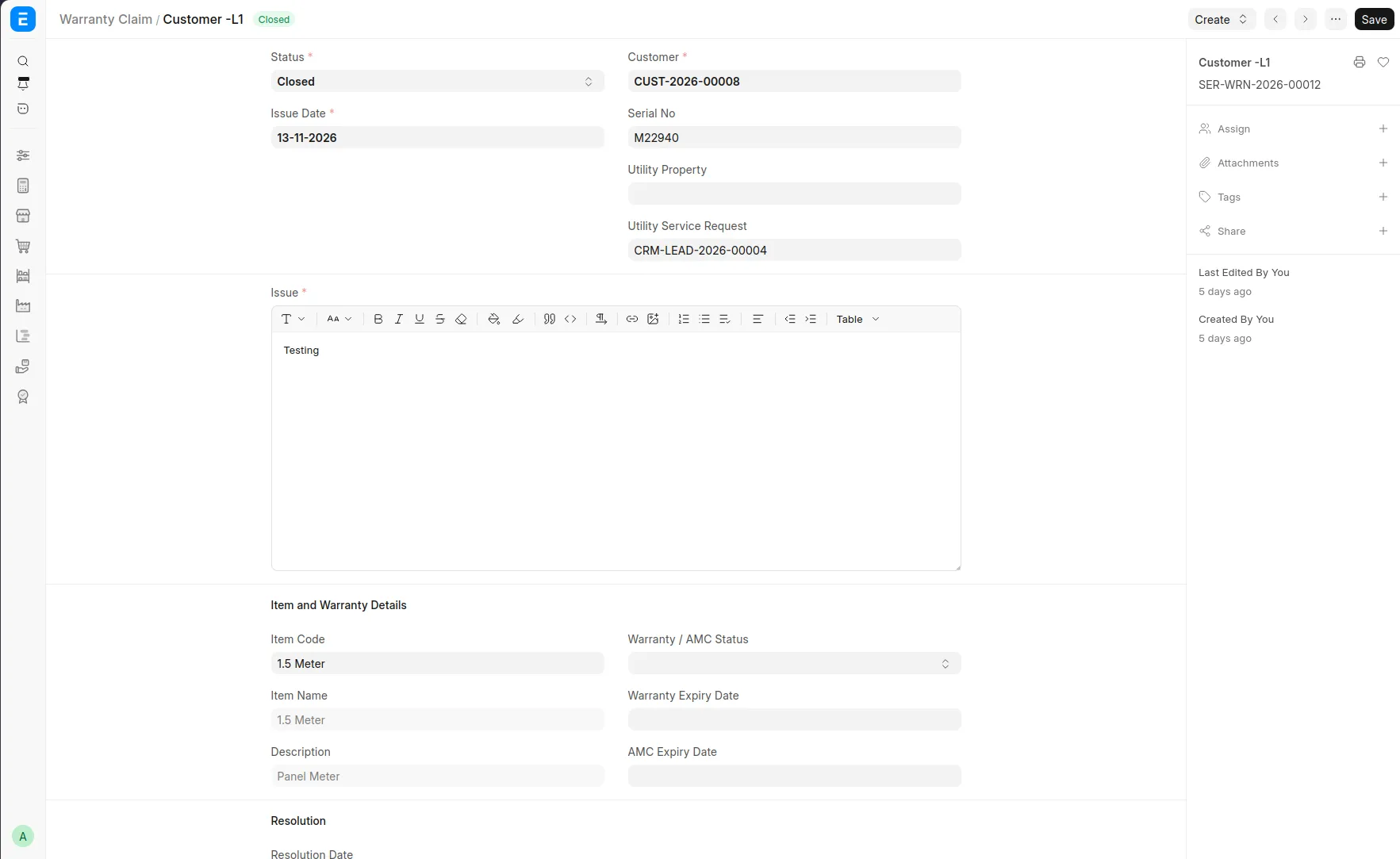
You can also create a Warranty Claim directly from the Warranty Claim list. In that case, choose the customer, the serial number and, if you use them, the property and the Utility Service Request.
Utility Service Request on a claim
The link is optional. The request must belong to the claim’s customer. When it is set, it appears under the request’s connections.
Create a Meter Reading from a claim
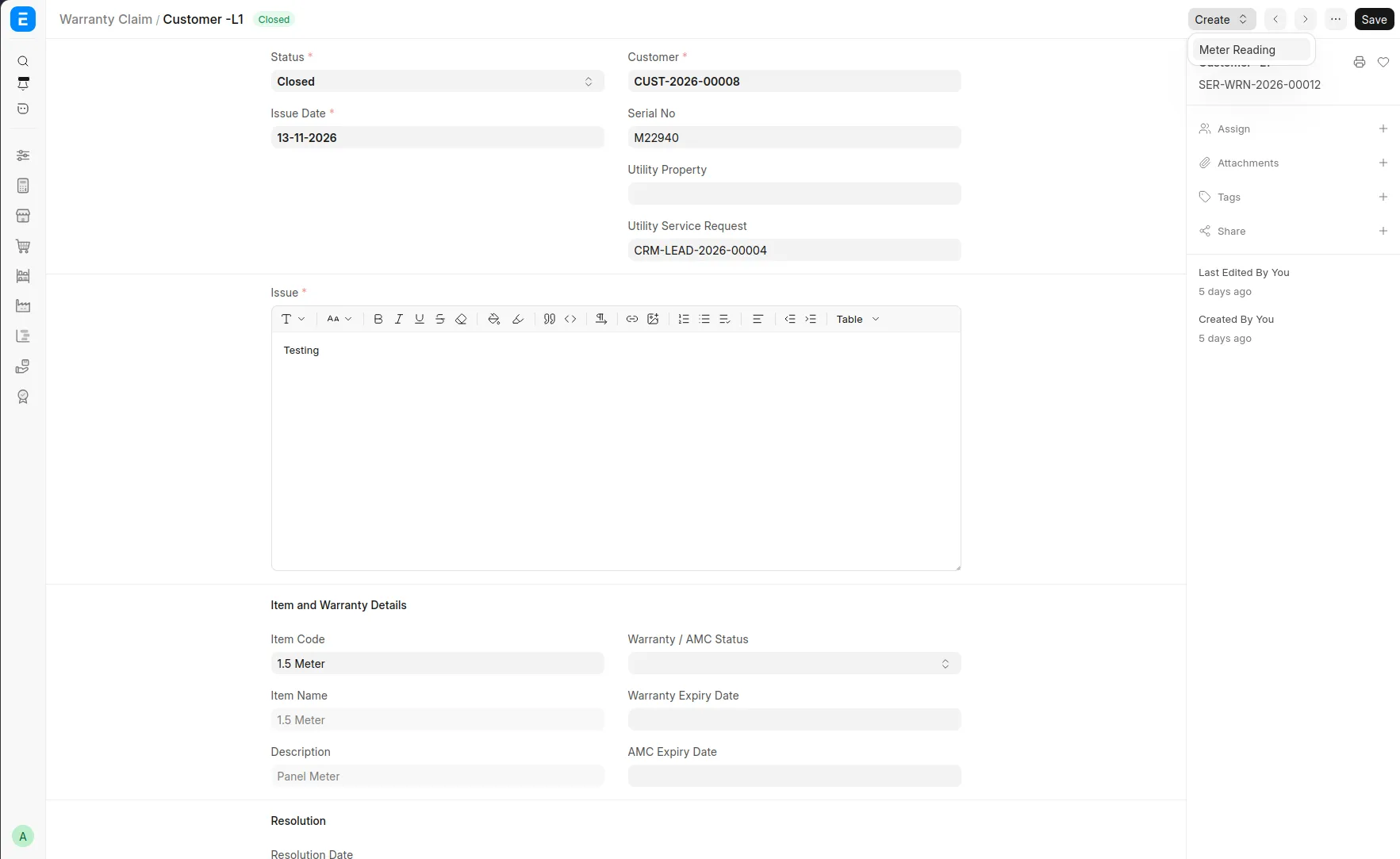
- Open a Closed claim with a customer and serial number and choose Create > Meter Reading. The reading opens with the customer, price list, property, request and meter filled in. Choose the item and warehouse, then enter the reading.
- To bill several meters of one customer together, select their Closed claims on the Warranty Claim list and choose Create Meter Reading. You get one row per meter. All selected claims must be Closed, have a serial number and belong to one customer.
If something does not work
See Troubleshooting.
Last updated 1 week ago
Was this helpful?