





Billing adjustment rules
A Billing Adjustment Rule sets how rent is repeated, how it increases over time, and what happens when a payment is late. You choose a rule on a requested property, or in the Define Item Prices dialog.
Create a rule
- Go to Billing Adjustment Rule > New.
- On the Details tab, set the recurring billing schedule.
- On the Increment Settings tab, set the increases, if rent goes up over time.
- On the Penalty Settings tab, set late payment charges and the accounts they post to, if you charge them.
- Save.
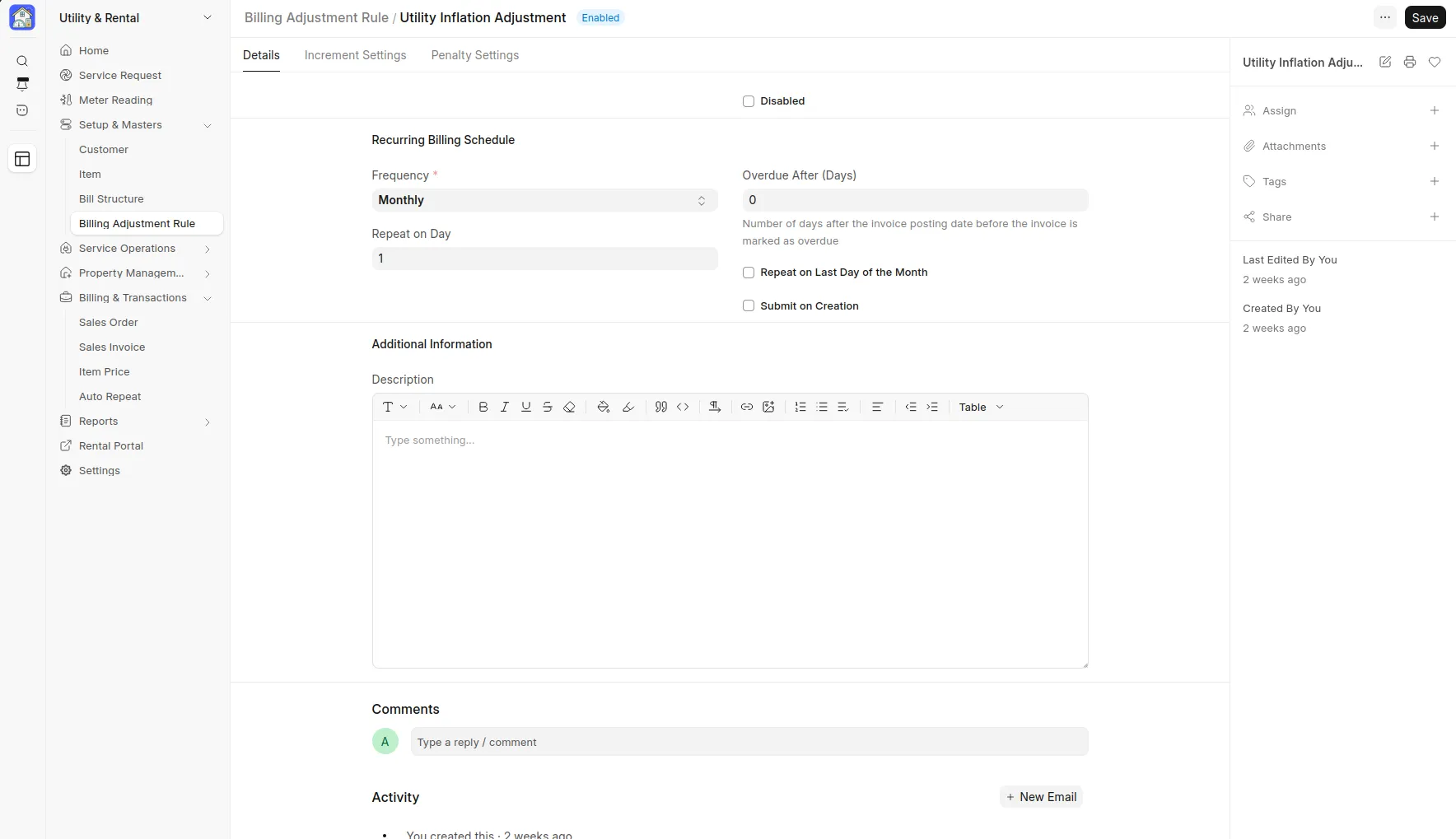
Details tab
| Field | What it is for |
|---|---|
| Disabled | Stops the rule being used. |
| Frequency | How often rent is billed, for example Monthly. Required. |
| Repeat on Day | The day of the month the document is created. |
| Repeat on Last Day of the Month | Creates the document on the last day of each month instead. |
| Submit on Creation | Submits each document when it is created, instead of leaving it as a draft. |
| Overdue After (Days) | Number of days after the invoice posting date before the invoice is marked overdue. |
| Description | Notes about the rule. |
Increment Settings tab
Use these when rent rises on a schedule.
| Field | What it is for |
|---|---|
| Increment Interval (Months) | The number of months between each increment. Enter 12 for annual increments or 6 for semi-annual increments. |
| Increment Percentage | The percentage the rent rises by at each increment. |
| Adjustment Basis | Whether adjustments are based on the Original Amount or the Last Adjusted Amount. |
| Effective After (Months) | The number of months after the lease starts when the first increment applies. |
With Original Amount, each increase is a fixed share of the starting rent, so the rent rises in a straight line. With Last Adjusted Amount, each increase is worked out on the rent as it stands, so the increases compound.
With Auto Repeat, the rule is chosen on the property row. With Item Price, choose it in Define > Item Prices, and its settings fill in the dialog (see Rent billing by Item Price).
Penalty Settings tab
Use these to charge late payment penalties.
| Field | What it is for |
|---|---|
| Penalty Frequency | How often the penalty is charged, for example Daily. |
| Penalty Type | Whether the penalty is a Fixed Amount or a percentage. |
| Penalty Value | The fixed amount or percentage to charge as a penalty. |
| Grace Period (Days) | Number of days after the due date before penalties apply. |
| Maximum Penalty Cap | The maximum penalty amount that can be charged. |
| Compounding Penalty | Whether penalties compound over time. |
| Submit Penalty Invoice | Submits each penalty invoice when it is created, instead of leaving it as a draft. |
A daily job works out the penalties on overdue invoices.
Accounting settings
On the same tab, choose the accounts the charges post to.
| Field | What it is for |
|---|---|
| Penalty Income Account | Where penalty income is posted. |
| Adjustment Income Account | Where income from rent adjustments is posted. |
| Penalty Receivable Account | Where unpaid penalties are held until they are paid. |
| Write Off Account | Where written off amounts are posted. |
If something does not work
See Troubleshooting.